How to Unlink a Skylight Calendar – Step by Step
Learn how to unlink a Skylight Calendar to switch accounts or set up a new profile. Follow this step by step guide for a smooth process.
In some cases, you might wish to detach a Skylight Calendar so that you can use it in a new configuration, profile, or Skylight user account. A calendar reset will erase everything on the device and you can either create new content or recover the old one. This tutorial describes how to unlink a calendar and delete it out of the list of devices it is linked to.
Best Digital Calendars
Why Unlink a Skylight Calendar?
- Unlinking is useful when:
- You would like to use the calendar under another user account.
- You wish to have a new setup of the device.
- You have to make a calendar change location in your house.
In the case of an unlinked calendar, it is set to Not activated and all the information of the prior configuration is deleted. This can be reactivated using a new activation code or previous data can be restored using the original code.
Amazon Affiliate Disclaimer
https://digicalendars.com participates in the Amazon Services LLC Associates Program, an affiliate advertising program designed to provide a means for websites to earn fees by linking to Amazon.com and other affiliated sites. As an Amazon Associate, we earn from qualifying purchases made through the links on our website. This does not affect the price you pay your support simply helps us maintain the site and continue offering honest, valuable reviews and recommendations.
Digital Calendars
Unlinking a Calendar
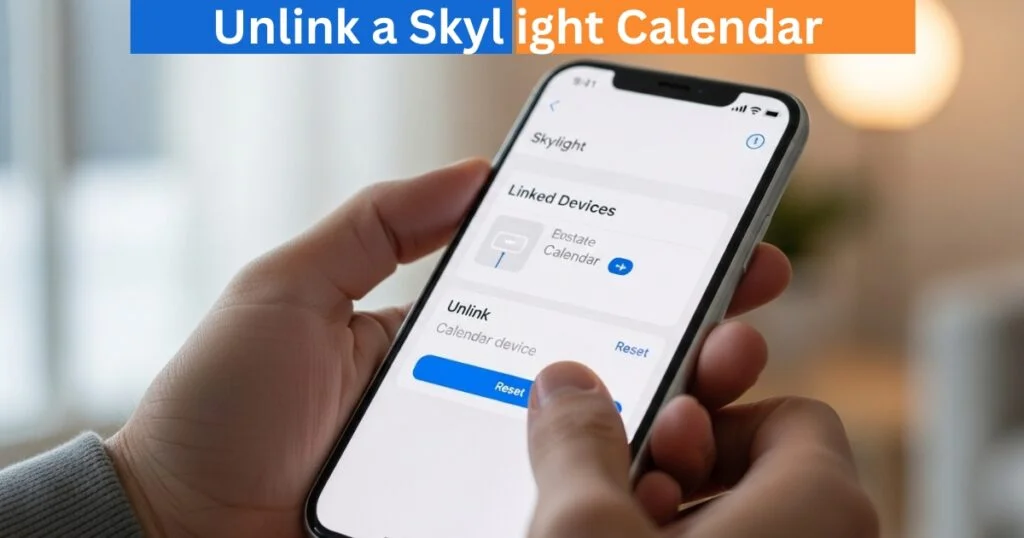
- To unlink a Skylight Calendar follow the following steps:
- Open the Skylight Mobile App.
- Touch the Skylight Calendar that you have activated (the one used to provide the data to the devices that it is connected to).
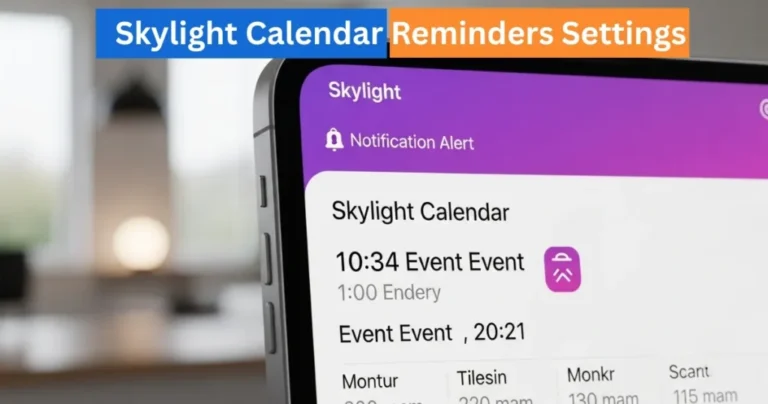
Tap Settings, Linked devices
- Single-tap the name of the calendar to be unlinked.
- Tap Reset, and tap again Reset.
The calendar will then be deactivated once the reset is completed and will be listed in the Linked devices list as Not activated. The equipment can now be reactivated, with a new set up or with an old set up code.
Best Digital Picture Frames
Removing a Calendar from the Linked Devices List
In case a calendar is not turned on, it may be removed as well as a part of the Linked devices list:
- Open the Mobile App.
- Tap the calendar that you have turned on in Skylight.
- Tap Settings, Linked devices.
- Click on the name of the calendar, which is Not activated.
- Tap Delete device in order to delete it out of the linked list entirely.
This is to make sure that your list of linked devices is kept clean and does not have old or unused devices.
How to Use Digital Calendar’s Features – Complete Guide
How to Use Digital Calendar’s Features 2 – Complete Guide
FAQs
Conclusion
It is quite easy and effective to reset a device or place it in a new set-up or user account by simply unlink a Skylight Calendar. Using the above steps, it is very easy to unlink a calendar, delete it off the list of linked devices, and utilize it again. The given feature will keep the calendars of your household flexible, organized, and customizable to meet the evolving needs.