How to Sync Events Easily on Dragon Touch eCalendar
Learn how to Sync Events Easily on Dragon Touch eCalendar for real-time updates, organized schedules, and effortless family coordination.
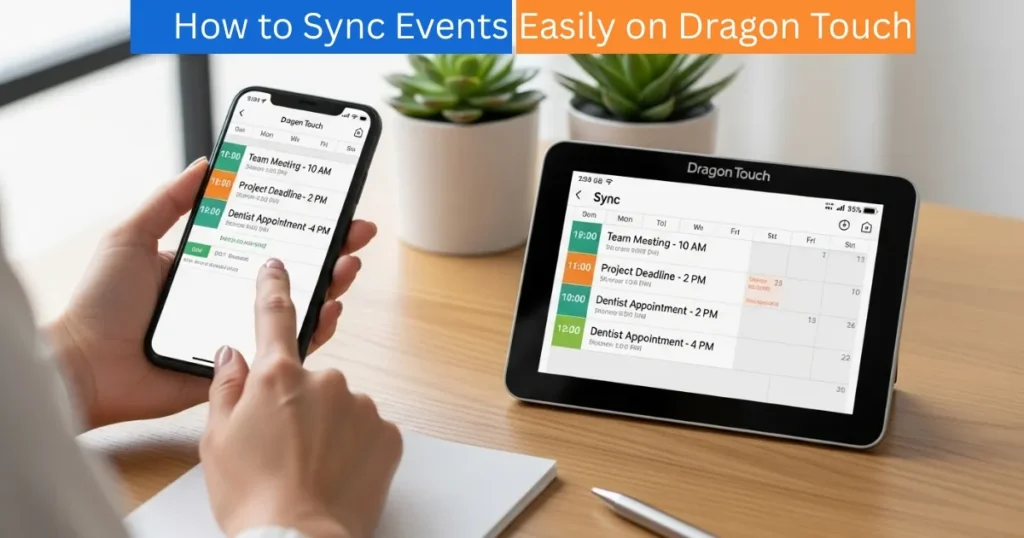
In the modern busy world, one can easily forget about important meetings, birthdays or day to day chores. The Dragon Touch digital calendar can address this issue by enabling its users to synchronize their calendar with their phone. It can be family schedules, business schedules or personal reminders, but whatever it is, it will always be well organized and viewable in a single place through syncing. As soon as you have all your events synchronized, all changes you make on your mobile app will also appear on the calendar frame – making your whole household or workspace perfectly in sync. The process of synchronizing events is not difficult and can be learned in a few steps as follows.

Best Digital Calendars
Step 1: Open the Calendar App
Begin by opening the eCalendar application in your smartphone. After that, it will be possible to pick your connected Dragon Touch calendar device on the list. Ensure that you are choosing the right device particularly when you have more than one of them connected to an account.
Amazon Affiliate Disclaimer
https://digicalendars.com participates in the Amazon Services LLC Associates Program, an affiliate advertising program designed to provide a means for websites to earn fees by linking to Amazon.com and other affiliated sites. As an Amazon Associate, we earn from qualifying purchases made through the links on our website. This does not affect the price you pay your support simply helps us maintain the site and continue offering honest, valuable reviews and recommendations.
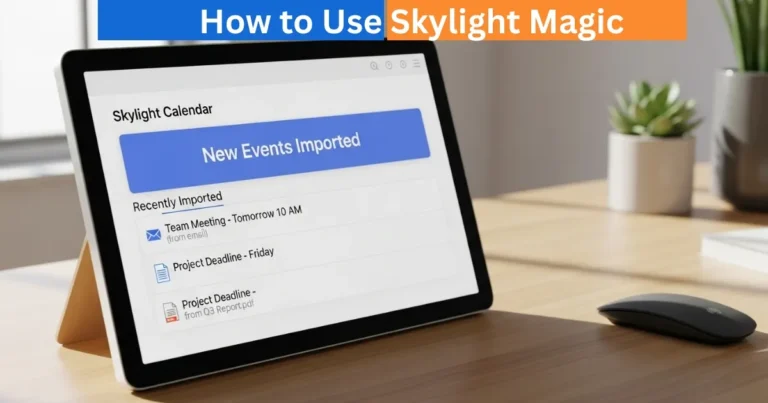
Once the device has been chosen, tap on events. Here, you will be able to view all of your synced activities, reminders and appointments once connected. It is your primary control board to handle all matters pertaining to scheduling.
Step 2: Add a New Event
At this point, press the + button at the bottom-right to create a new event. This may be anything – a family dinner to doctor appointment or a work meeting.
The user interface is not complicated. You can name your event within a few seconds, specify its time and choose whether it should be repeated or not. When it is added, it automatically adds to your digital calendar system.
Step 3: Edit Event Details
Secondly, tailor your event information to ensure that nothing goes wrong. Here’s what you can modify:
- Name: Enter some brief name of your event (e.g., “Weekly Review” or “Yoga Class”).
- Date and Time: Establish your starting and ending date of your event.
- Repetition: Select whether it is the same daily, weekly or monthly.
These features will make sure that your Dragon Touch eCalendar does not add any clutter to your schedule or have any important details missed.
Digital Calendars
Best Digital Picture Frames
Step 4: Attach Events to Profiles
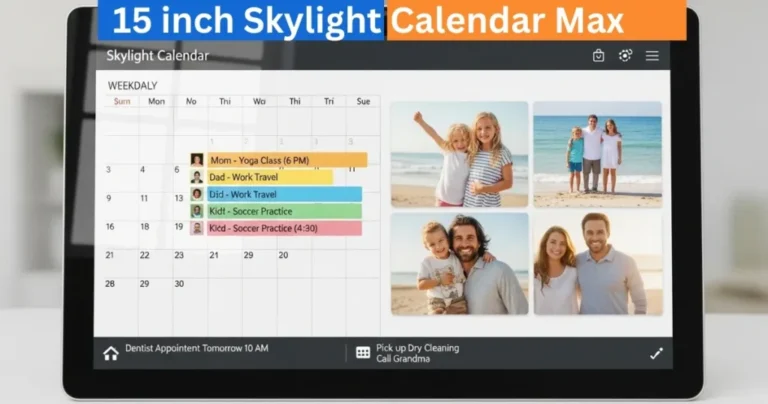
This feature is ideal in case you are using the calendar with your family. You can tell events of certain profiles like mom, dad or kids. The profiles may have their names and color associated with them to be more distinctively seen. To accomplish this, one only needs to choose the profile when creating an event. You may also add a new one by tapping on the Add Profile.
This will enable all the people in your house to be aware of their duties and plans with just a glimpse at them.
Step 5: Automatically Sync Events Easily on Dragon Touch
When you save your event, it will automatically be reflected on both your e calendar application and your Dragon touch digital calendar frame.
No hand refreshing is required because synchronization takes place automatically in real time. This is so that regardless of where you update (whether on the app or device) your schedule will always be perfectly updated and consistent.
How to Use Digital Calendar’s Features – Complete Guide
How to Use Digital Calendar’s Features 2 – Complete Guide
FAQs
Conclusion
Scheduling your events on your Dragon Touch Digital Calendar means that you will know everything about your important events including your daily routine at home and even during special Sync Events Easily on Dragon Touch because you can always access them. With these few steps, you will add, edit and share events between your phone and Sync Events Easily on Dragon Touch frame easily. This two-way sync helps in keeping your life in order and without stress regardless of whether you are at home or in the office.