How to Sync Cozi Calendar to an iOs phone?
Learn how to sync Cozi Calendar with your iOS phone or Dragon Touch frame using eCalendar App for seamless family scheduling and event management.
Sync Cozi Calendar is one of the successful family calendar applications, which can be used to organize and keep track of events, appointments, and reminders. Assuming that you are using a Dragon touch or an eCalendar digital frame, then by integrating your Cozi Calendar with your iOS phone, you can ensure that all events are visible on your phone and the calendar frame. It is a guide to walkthrough the application of Cozi digital Calendar syncing efficiently.
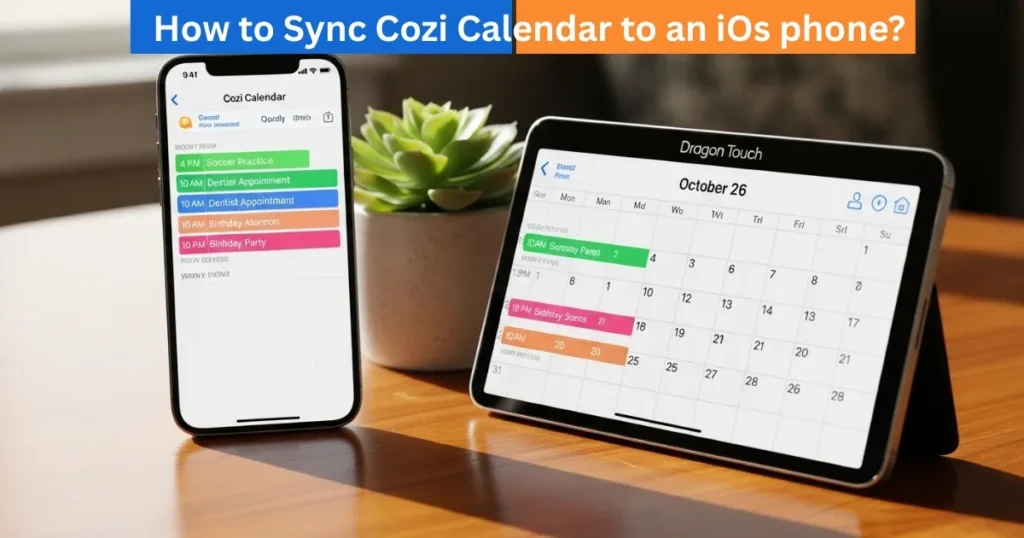
Step 1: Add or View an event in Cozi
To begin with, open the Sync Cozi Calendar App in your iOS gadget. Make sure that you are logged in to the right family account. The first step to the syncing process is to create a new event or open an existing event in Cozi. You will not have to change the event itself; this is to make sure that the app is on, and the calendar link will be recalled.
Amazon Affiliate Disclaimer
https://digicalendars.com participates in the Amazon Services LLC Associates Program, an affiliate advertising program designed to provide a means for websites to earn fees by linking to Amazon.com and other affiliated sites. As an Amazon Associate, we earn from qualifying purchases made through the links on our website. This does not affect the price you pay your support simply helps us maintain the site and continue offering honest, valuable reviews and recommendations.
Best Digital Calendars
Step 2: Open the URL of Shared Cozi Calendar
Then go to the Family Settings in Cozi App. Tap on Family and then Tap on Settings. In the settings menu, go to Shared Sync Cozi Calendar. This is a choice that enables you to create a distinct URL of the shared calendar. tap VIEW OR SEND COZI URL and COPY COZI URL. This connection encompasses all the events and is able to synchronize with other platforms or devices.
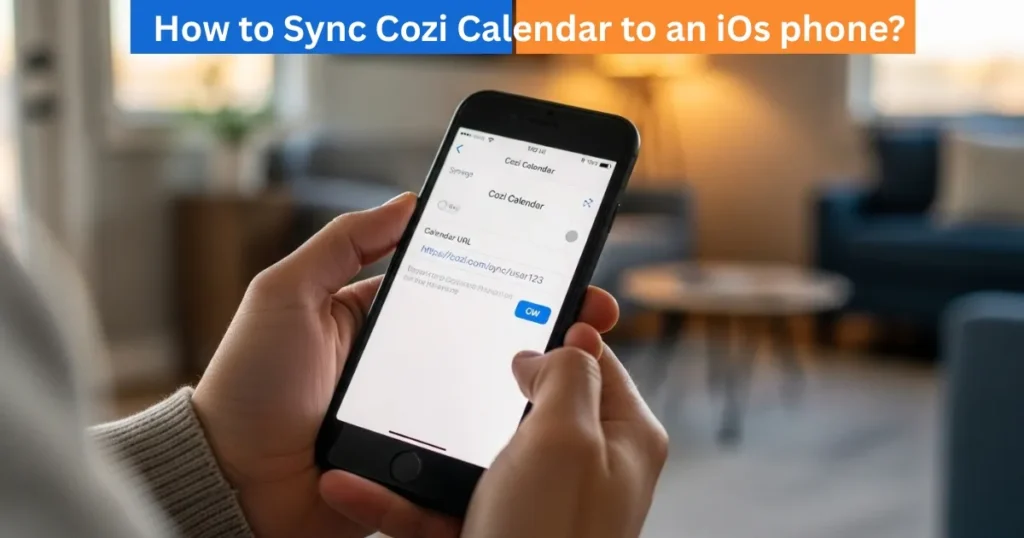
Step 3: Apply eCalendar APP to Sync Cozi Calendar (Method 1)
Launch the eCalendar APP on your iOS. Choose the calendar device that you would like to sync. Select Tap Sync and Select Sync a New Calendar. Select Calendar URL and paste there the Cozi URL that you copied above. Confirm by tapping Sync. The application will take care of the URL, and all events in Cozi will be automatically added to your digital calendar frame.
Best Digital Picture Frames
Step 4: Cozi Calendar (Method 2) by way of syncing with email.
In case you like using email, then copy Cozi URL and paste it in the body of email. In the case of iCloud mail users, it can be in plain text form, but it should be changed to a real, clickable link. Forward the email to the special email of the calendar device (it is in the eCalendar APP in settings of the device). On your phone, open the eCalendar APP, choose the device, and then, Sync, then Sync a New Calendar – Cozi. Select the email address and enter it in the recipient field and send. It will take a couple of minutes before the Cozi calendar events will appear on your device.
Step 5: Verify Sync
Once they have been synchronized, look at your Cozi App and the digital calendar frame to make sure that everything looks right. Updates or any changes made in Cozi like a new event or an update will display on your calendar frame after resynchronizing the calendar again. This will enable you to have one source of truth of all the family activities without duplicating or forgetting meetings.
How to Use Digital Calendar’s Features – Complete Guide
How to Use Digital Calendar’s Features 2 – Complete Guide
FAQs
Digital Calendars
Conclusion
Cozi Calendar can be synced with an iOS phone using eCalendar APP or a Dragon Touch digital frame so that family members can easily schedule and organize their activities. Using the above steps, you will be able to automatically have all the events, appointments and reminders automatically listed on your digital calendar. This approach will keep your family on track, avoid lost events and will put all the information on your schedule in one place where it can be accessed at home or on the move.