Reduce Screen Size on Dragon Touch 7-Day Calendar – Guide
Learn how to reduce screen size on Dragon touch 7-day view of your Dragon Touch Digital Calendar for better weekly visibility and easy planning.
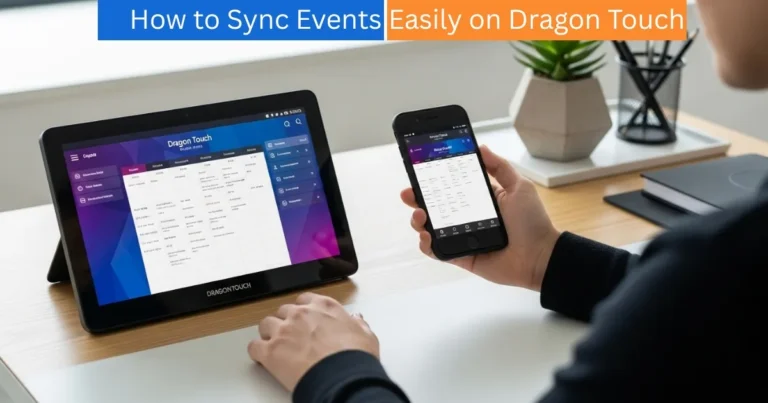
The Dragon Touch Digital Calendar will be created with the purpose of simplifying the daily schedule and time management of families, professionals, and any person who likes to organize their time. It has a 7 days view that is one of the most helpful features that allow you to view the events of your entire week at a glance.
However, in some cases, 7-day view can be too crowded with events or details and you might wish to decrease the screen size in order to have more time periods on the screen. Fortunately, it is very easy to do this! In this paper we are going to show you how to zoom out and have the best view according to your schedule.
Amazon Affiliate Disclaimer
https://digicalendars.com participates in the Amazon Services LLC Associates Program, an affiliate advertising program designed to provide a means for websites to earn fees by linking to Amazon.com and other affiliated sites. As an Amazon Associate, we earn from qualifying purchases made through the links on our website. This does not affect the price you pay your support simply helps us maintain the site and continue offering honest, valuable reviews and recommendations.
Best Digital Calendars
Understanding the 7-Day View
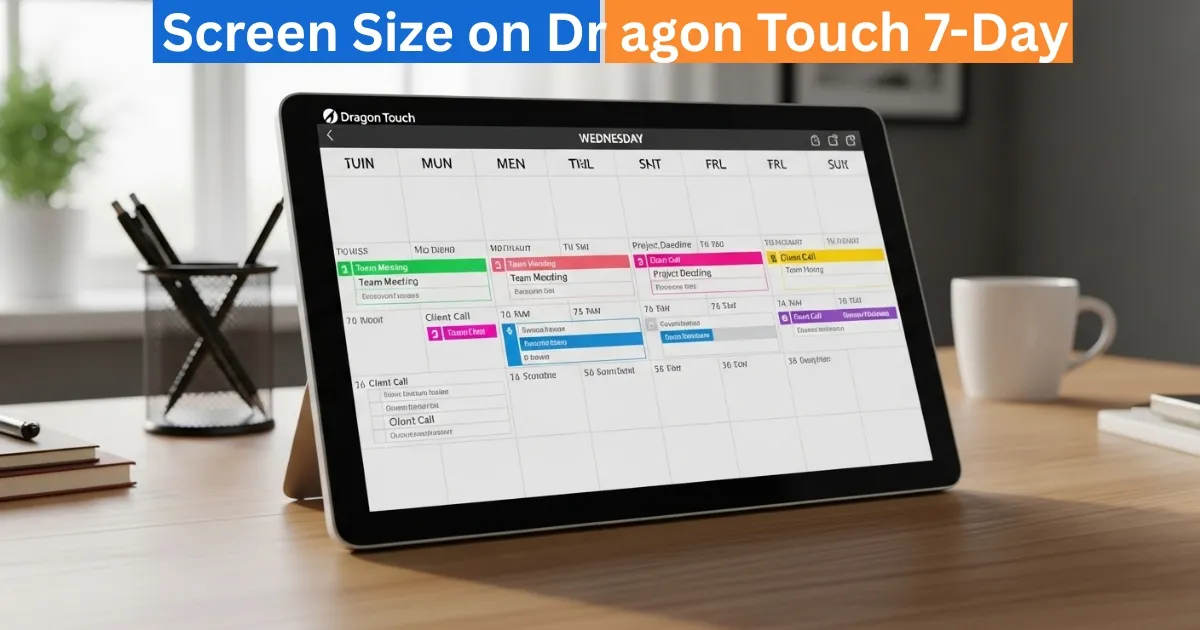
One of the most used display options on the Dragon touch digital calendar is the 7-day view. It enables you to see a complete week of events or in other words Monday to Sunday in a clear and well-organized layout.
Every event block is shown depending on the time and duration it is scheduled. Nevertheless, when you are busy and have two or more appointments or meetings, default zoom level may prove difficult to see on everything simultaneously. It is at that point that the zooming out (reducing the screen size) comes in handy.
Digital Calendars
How to make the screen smaller in size?
To reduce the Screen Size on Dragon of your calendar to a 7-day view and be able to view more of your schedule in one screen, follow these easy steps:
- Change Your Calendar to Schedule View.
- To start with, ensure that your Dragon touch Calendar is in Schedule or Week mode.
- Gesture Tap the view selector (mostly located on the top of the display) and then select Schedule View.
- This perspective can be zoomed and a better structure of what you need to do in your week.
- Use Two Fingers to Zoom Out
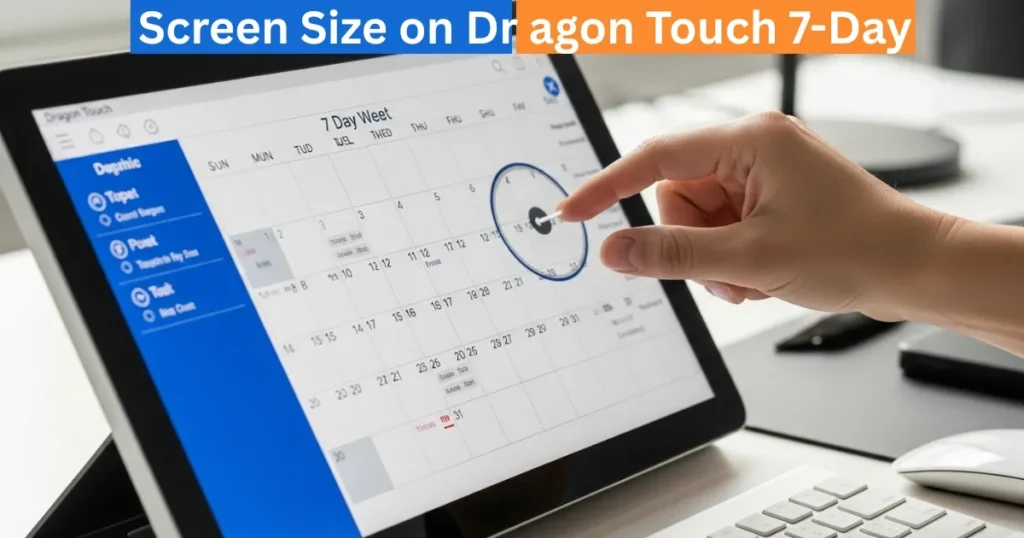
- After you are in Schedule View, touch the screen with two fingers, and pinch them outward to zoom out.
- The gesture will make the screen size smaller, displaying a larger number of time slots on the same screen.
View More Time Periods
Once you zoom out, you will see that your calendar will show more time slots – this is perfect if one has back-to-back meetings or a busy day. It is always possible to zoom in and then come back later and focus on particular hours or events.
Best Digital Picture Frames
Reasons Why It Is Beneficial to Reduce the Size of the screens.
The benefits of the 7-day view with the screen size reduced are several:
- Plan a lot of events simultaneously: You can view your morning, afternoon, and evening plans simultaneously.
- Easier Weekly Planning: Ideal to families, teachers, and people who are busy with their schedules.
- Better Organization: The less scrolls the better, having a cleaner and better organized view of your week.
Quick Overview
It is especially handy when you are sitting with the Dragon Touch Calendar in a common place, like a living room, office, or classroom, and all people can easily read ahead what to do and when they have an appointment.
Guidelines towards an Enhanced Viewing Experience.
- Brightness: You should ensure that your screen brightness is comfortable enough to make eye strain minimal whenever you are zooming out.
- Rotate the Screen: See if your calendar is better in horizontal or vertical mode.
- Check in the Mobile App: In case you want a smaller screen, you can also check your 7-day schedule on the Dragon touch mobile app.
- Zoom Sensitively: Do not zoom in too much – it can result in text being too small to read.
How to Use Digital Calendar’s Features – Complete Guide
How to Use Digital Calendar’s Features 2 – Complete Guide
FAQs – Reduce Screen Size on Dragon Touch
Conclusion
The smaller the size of the screen in the 7-day view of the Dragon Touch Digital Calendar the greater the flexibility and control you have in managing your schedule. It only takes two simple gestures changes to Schedule View and the two-finger zoom gesture to view more periods of time and have a more relaxed planning experience.
It may be as simple as a personal appointment or work schedule or family schedule, but this little change can help save you a lot of time in terms of getting your schedule in order effectively throughout the week.