How to Use the User Management Feature – Complete Guide
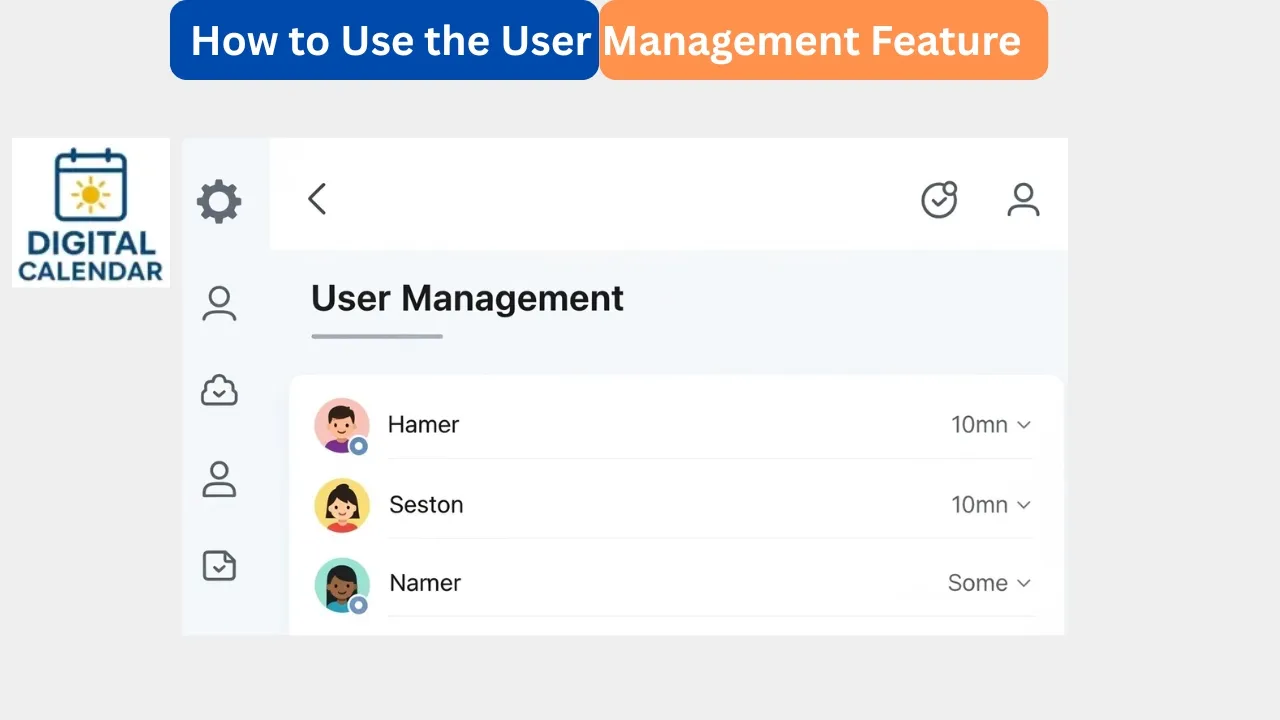
Learn how to use the User Management feature to add users, control permissions, manage photo access, and handle invitations on the Frame and app.
User Management feature enables you to add and manage users, permissions, and regulate the interaction of the members with photos on your Frame and digital Calendar app. The version 3.6.0 of Calendar Frame and eCalendar App version 1.30.0 have this feature and, therefore, guarantee a smooth and secure user coordination. It also assists families in sharing content in a safe manner and providing complete control over photo visibility and editing rights. The system is structured in such a way that it is easy to use. Here are the steps to use in order to get the guide.
Best Digital Picture Frames
Module Introduction
Family sharing The same Frame is a valuable tool with User Management. It will enable the owner to manually add new users using their registered email addresses. When they are added, they can be given access to see or edit photos based on the settings that you select. The feature makes privacy to be preserved but at the same time shared. This will provide a safe and controlled environment to all the family members.
Amazon Affiliate Disclaimer
https://digicalendars.com participates in the Amazon Services LLC Associates Program, an affiliate advertising program designed to provide a means for websites to earn fees by linking to Amazon.com and other affiliated sites. As an Amazon Associate, we earn from qualifying purchases made through the links on our website. This does not affect the price you pay your support simply helps us maintain the site and continue offering honest, valuable reviews and recommendations.
How to Use User Management
Click on the User Management Option
Start by clicking on the Settings menu on your Calendar Frame. Keep scrolling down until you have reached the User Management option. Click on it to get the list of users and management tools. It is here that you will add and manage all accounts of users. The screen is straightforward and user friendly.
Best Digital Calendars
Manually Add New Users
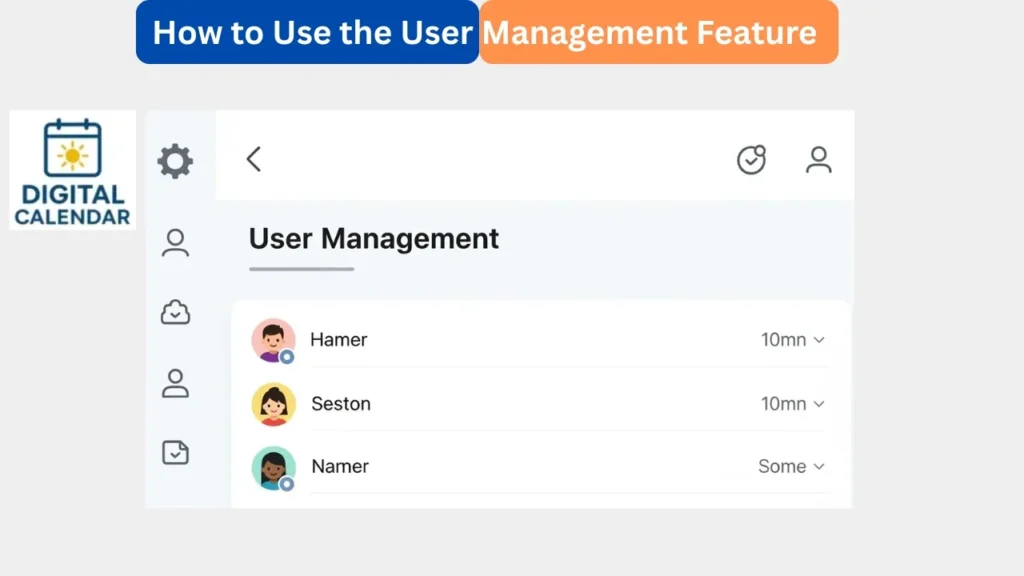
Within the User Management screen, you have an editing bar where you can enter email addresses. Enter the email address of the individual that you wish to add. This should be the email address they used to open an eCalendar account. They will not get the invitation in case they enter the wrong email. Confirmation should always be made by checking the address.
Control Photo User permissions
After adding a user, it is possible to control photo access permissions. There are three choices available to you:
- View only their photos, which limits them to see what other people have.
- Allow access and editing of photos, full access and editing rights.
- Allow viewing photos, enable them to view but not edit shared photos.
- Such environments allow privacy and control in shared albums.
Digital Calendars
Invitations Accepted on the App
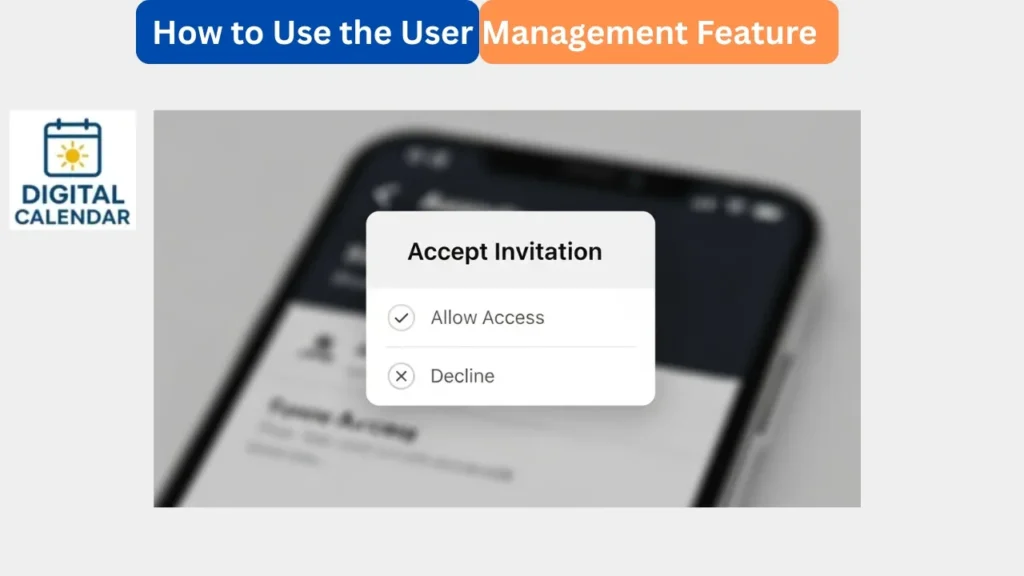
Once a user is added, an invitation notification will be received on his or her phone in the eCalendar app. They need to open the application, proceed to notifications and tap Accept. After approval, the user is connected to the Frame and is able to make use of the shared album on the Home interface. This is a security measure since it prevents unauthorized access. The user is not accepted and cannot become a part of the shared album.
Users Can Manage Their Own Permissions
Photo permissions can also be done on the side of bound users. They are able to use the Permission option within the User Management interface on the app. This will enable them to regulate their interactions with photos as well as the degree of access they desire. Permission control provides freedom to individual user. It maintains the experience as safe, customized and simple to control.
How to Use Digital Calendar’s Features – Complete Guide
How to Use Digital Calendar’s Features 2 – Complete Guide
Benefits of the User Management Feature
User Management option offers a security means to share your Frame with your family. It makes sure that all people have controlled access based on their duties and requirements. The permission system eliminates unwanted visibility and accidental edits. The invitation-based relationship provides an extra level of protection and prevents unauthorized access. In general, it offers organization, privacy and flexible sharing features.
FAQs
Conclusion
The User Management option provides full control over the access allowed to people to see your Frame and the way they can communicate with your photos. Adding users to managing permissions, the feature is keeping your content secure and still giving the ability to share with family. The process is easily made simple by the simple design. User Management provides a secure and flexible access level and balanced, organized, and safe experience to all.