How to Unbind Your Account on Dragon Touch Calendar Frame
Learn how to safely unbind and reconnect your Dragon Touch Calendar frame from your account. Follow easy steps to ensure smooth synchronization and privacy.
Dragon Touch Digital Calendar is a strong smart scheduling device that is intended to keep your life in order. It links your personal calendar to your digital calendar frame and enables a smooth synchronization of events, reminders and tasks. But sometimes you can be called upon to unbind your account and calendar frame, such as when changing devices, when giving away your calendar to a friend, or when you are having problems with your connection.
Here are the steps we are going to take you through in an attempt to have your account safely unbounded by your Dragon touch digital calendar and rebound it in the future should there be a need.
Amazon Affiliate Disclaimer
https://digicalendars.com participates in the Amazon Services LLC Associates Program, an affiliate advertising program designed to provide a means for websites to earn fees by linking to Amazon.com and other affiliated sites. As an Amazon Associate, we earn from qualifying purchases made through the links on our website. This does not affect the price you pay your support simply helps us maintain the site and continue offering honest, valuable reviews and recommendations.
Digital Calendars
Learning about Account and Frame Binding
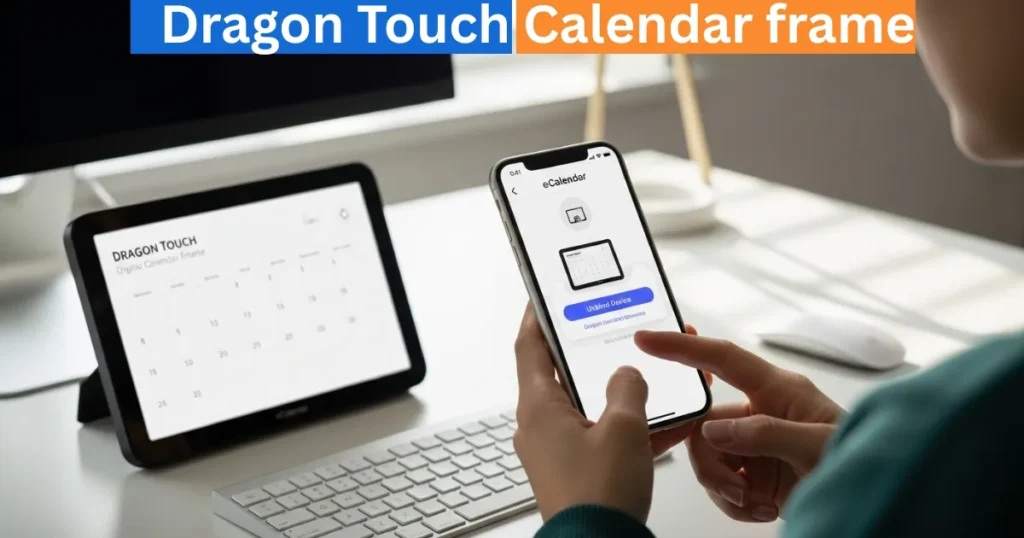
Upon initially connecting your Dragon touch Calendar digital device, you link your device with your eCalendar application account. This is what is referred to as binding where your events, reminders, and notifications are automatically synchronized between the application and your calendar display.
Scheduling will keep your calendar frame updated with all your planned activities. But, when you need to transfer your frame to a new user or correct the errors with the synchronization, you will have to unbind (disconnect) your account and reconnect it.
Best Digital Calendars
How To Unbind Your Account and Calendar Frame?
To unlink your calendar with your Dragon touch account safely, follow the following easy instructions:
Step 1: Enquire of the Most recent App Version.
- You need to ensure that your eCalendar application is current before disconnecting.
- Open the applications store of your phone (Google Play Store or Apple App Store).
- Search for eCalendar App.
- Make sure that you have the latest version of the app 1.30.0 or above.
The app should be updated to make sure that none of its functions, such as unbinding, has a problem with errors.
Step 2: Find Your Frame and Open eCalendar App.
- Open your eCalendar application and proceed to the Home screen.
- In this case, you will find a list of interconnected devices.
- Locate the virtual address of your calendar frame, i.e. the device that you want to unbind.
Best Digital Picture Frames
Step 3: Swipe and Tap the Unbind Button.
- When you have found the right frame, move it to the right hand side with its address or name.
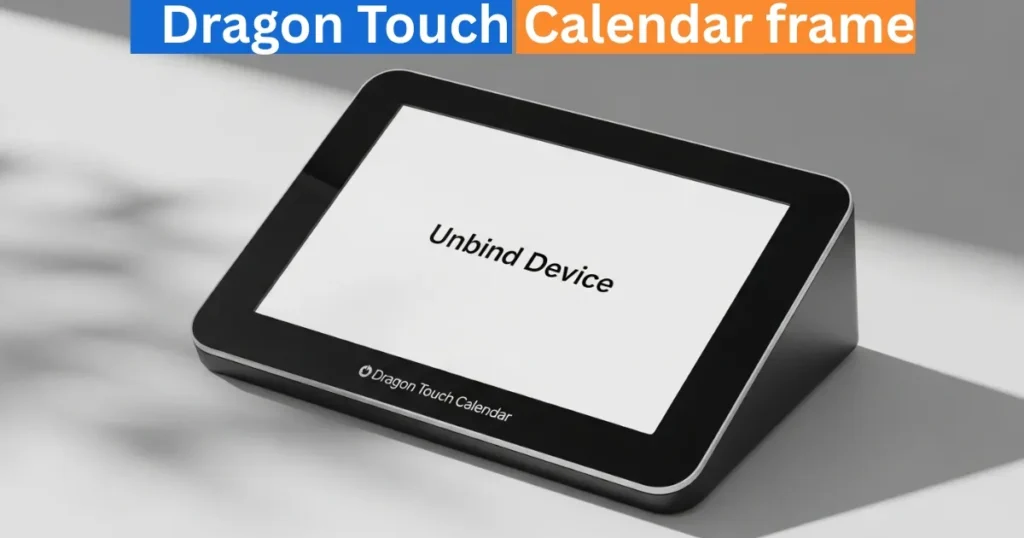
- This action will display a button that is marked Unbind Devices.
- This button is used to begin the unbinding process.
Step 4: Confirm Unbinding
- Once you have tapped on Unbind Devices, your calendar frame will be disconnected by your account.
- After freeing the device, it will go automatically back to the default setup mode, and be ready to be activated again.
Step 5: Installation of Activation Code
- In case you wish to reconnect the same device in the future, just enter your Activation Code on the frame again.
- This will reconnect it with your eCalendar account, and you will be able to be back to the synchronization.
At What Time of the Year Should You Unbind Your Calendar?
The following are some of the typical reasons why it is useful to unbind your Dragon Touch Digital Calendar:
- Changing Accounts: When you change your email or eCalendar profile.
- Leaving the Calendar behind: As you hand the gadget over to another family member or friend.
- Fixing Sync Problems: When the app and frame are not syncing correctly.
Before You can perform a factory reset or change the settings of your calendar. Unbinding assists in keeping your personal data confidential and also in providing a clean slate to the next user.
The Pro Tips of a Smooth Unbinding Process.
- Check Wi-Fi Connection: Ensure that your calendar frame is wired to Wi-Fi then unbind.
- Do not switch off the Device: Do not disconnect whenever doing the unbinding.
- Save Your Activation Code: You can write or take a screenshot of your activation code in order to reactivate it in the future.
- Install the Recent App Update: It is always recommended to use 1.30.0 or later of eCalendar app to be on the safe side.
How to Use Digital Calendar’s Features – Complete Guide
How to Use Digital Calendar’s Features 2 – Complete Guide
FAQs
Conclusion
The process of unbinding your Dragon Touch Digital Calendar to an account is very fast and easy and data privacy and the ease of managing the device is guaranteed. You can trouble shoot, change accounts or even give your calendar away, but by following the steps outlined above, you can be assured that your unbinding experience is both safe and smooth sailing.
Only a few taps will be all that is required to get your Dragon Touch Calendar ready to be set up again in a few minutes, updating your app, swiping to unbind and (optionally) typing your activation code.