Connect Third-Party Event Links on Dragon Touch Calendar
Easily connect third-party event links like iCal or .ics files with your Dragon Touch Digital Calendar using iCloud for organized event management.
Being organized on various platforms may be a bit hard at times, particularly when your activities are distributed in various applications and software. The Dragon touch digital Calendar makes this task easier as it enables users to add event links to the third party platforms. You can also integrate your calendar with your Dragon touch using your iCloud Calendar whether your events are using a custom app or any other online calendar.
We should take you through the whole of what you need to know about adding third-party event links – what they are and how to put them in the right place in your iCloud Calendar.
Amazon Affiliate Disclaimer
https://digicalendars.com participates in the Amazon Services LLC Associates Program, an affiliate advertising program designed to provide a means for websites to earn fees by linking to Amazon.com and other affiliated sites. As an Amazon Associate, we earn from qualifying purchases made through the links on our website. This does not affect the price you pay your support simply helps us maintain the site and continue offering honest, valuable reviews and recommendations.
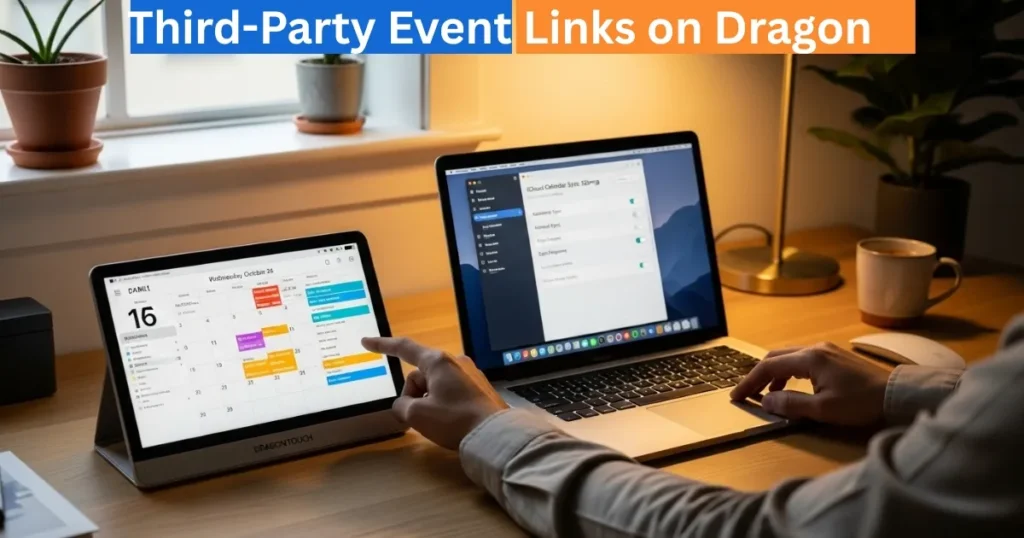
What are 3rd Party Platform Event Links?
It is necessary to be conversant with the meaning of third party platform event links before syncing. These are links to calendar sites that are not a Google Calendar or iCloud Calendar, an Outlook, Cozi, or Yahoo Calendar. That is, they have external sources, which nevertheless permit you to get schedules or event feeds.
Best Digital Calendars
To take this as an example, when you use a fitness tracking application, project management tool, or a school event portal, then those systems tend to create calendar feed links (typically with the endings of either.ics or.ical). You can import these feeds into your Dragon touch calendar and thus all your activities will be in a single location.
Digital Calendars
How to Sync Event Links between the third parties?
It is not that difficult to sync these links, only that it involves a couple of steps which one has to be careful with. The steps to follow to have a smooth sync are as follows:
- Locate Your Event: Find the URL that is offered by your Third-Party Event Links application or platform. It is commonly referred to as Calendar Feed, Export Link or iCal Link.
- Add It to iCloud First: As the Dragon touch system syncs with iCloud, you need to add this third party connection to your iCloud Calendar.
- Check Compatibility: It is important to remember that not all external links are compatible. In case the file format or the type of calendar is not supported, the synchronization can fail.
- Video Reference: In case you need it, you can find the official video on iCloud sync tutorial that will show you how to add other calendars or event schedules.
- Check on iCloud Calendar: After the connection has been made, open up your iCloud Calendar and see that your events have been properly displayed.
- Secrecy: When you cannot have your events displayed on your Dragon Touch frame or the syncing is not working, do not panic. The support can be contacted by posting the link there, and they will troubleshoot the compatibility problems.
Best Digital Picture Frames
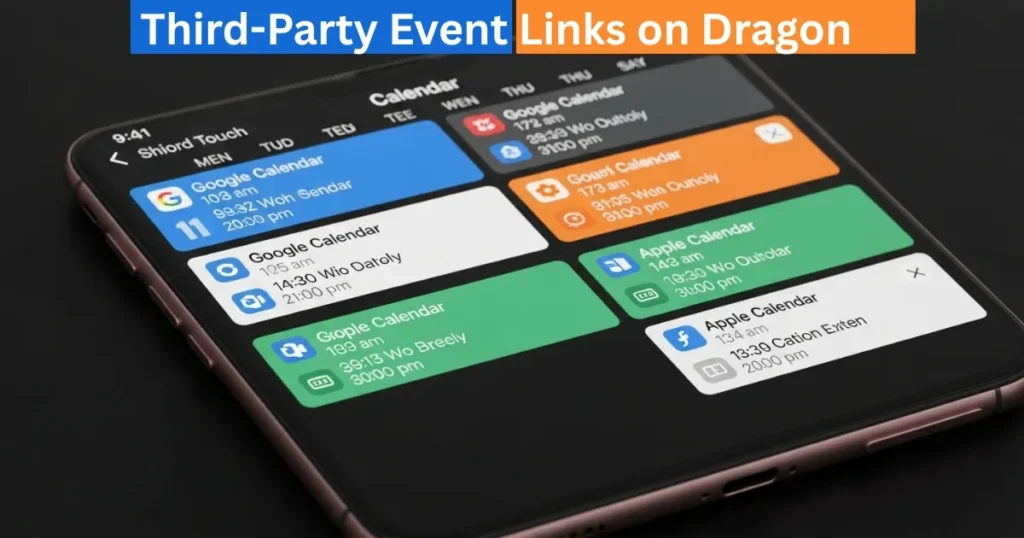
Displaying Synced Events on iCloud Calendar.
After you have connected your link to the iCloud, here are the steps you will need to follow so that everything will appear in your Dragon Touch Calendar:
- Open on the iCloud Calendar on the desktop or mobile device.
- Click the i button beside the calendar that you have just created.
- Locate the option of Subscription Details and open it.
- Click the event link (URL) under subscription details.
- Open the eCalendar App and insert that link to the field of the URL.
- Save settings: your third-party events ought to have shown up on your Dragon touch digital calendar.
In case your synced events still fail to show up this might be because of a temporary sync delay or because the format is not supported. Send the notification to Dragon touch support and they will look into the matter.
Common Issues and Solutions
- Not showing events: Recheck the format of links (.ical or.ics are best).
- Duplicate entries: Delete the old subscription links and add a new subscription link.
- Partial sync: This is necessary to have your iCloud Calendar tied to the same account as your Dragon Touch frame.
Error: Link: This may be caused by the source of the event having limited sharing permissions, and probably it is necessary to create a new public feed link.
How to Use Digital Calendar’s Features – Complete Guide
How to Use Digital Calendar’s Features 2 – Complete Guide
FAQs
Conclusion
The ability to synchronize the event links of Third-Party Event Links platforms with your Dragon Touch Digital Calendar enables you to keep your schedule in order and available across different devices. With those links added to your iCloud Calendar, and then joined together using the e calendar App, you will be able to enjoy the real time view of all your important events.