How to Use Calendar Photo Feature on Dragon Touch eCalendar
Learn how to upload, manage, and display Calendar Photo Feature on Dragon Touch eCalendar to turn it into a stunning digital photo frame.
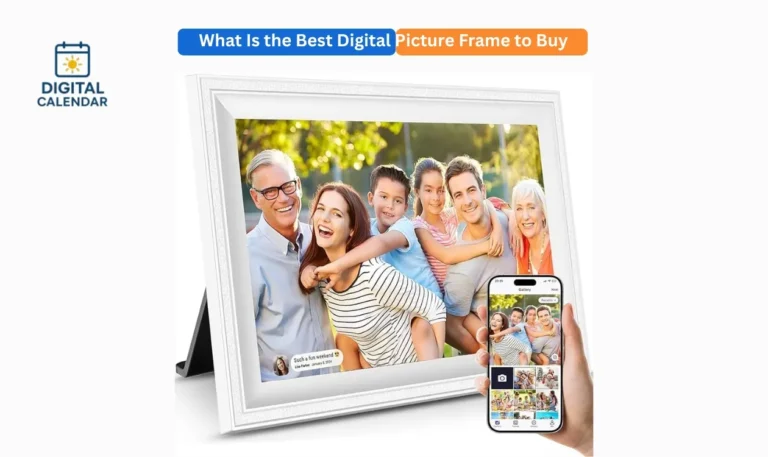
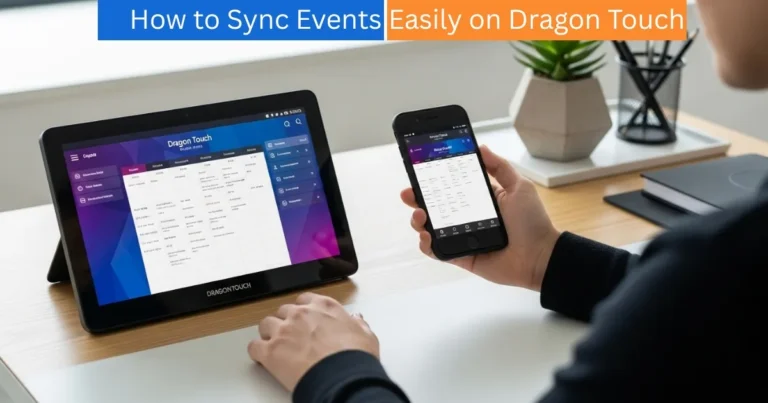
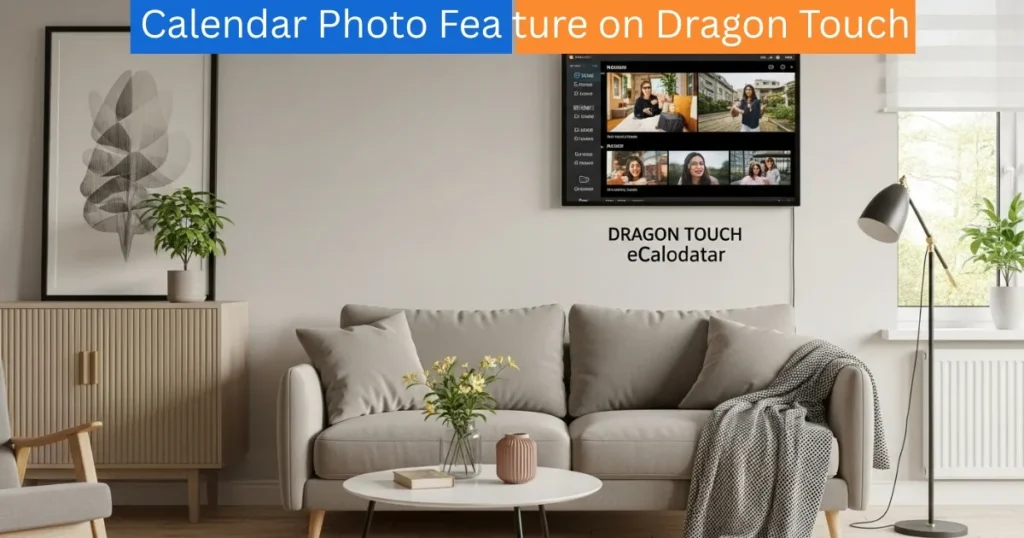
The Calendar Photo Feature on Dragon Touch is not a smart digital planner only, it is a very beautiful photo frame that preserves your memories. You will be able to watch, post, and edit your best moments on your calendar screen with its in-built photo and video feature. The entire step by step procedure of using the Calendar Photo Feature is given below.

Digital Calendars
Step 1: View Photos
Open the digital Calendar application on your phone. Choose the connected calendar and press the button “Calendar Photo Feature on Dragon Touch” button. In this case, you are able to view all the photos uploaded. This part is sort of your own photo album like you can view all the pictures on your calendar frame. It is an easy method of tracking the media uploaded and ensuring that all the images are just the way you desire them to be on the gadget.
Amazon Affiliate Disclaimer
https://digicalendars.com participates in the Amazon Services LLC Associates Program, an affiliate advertising program designed to provide a means for websites to earn fees by linking to Amazon.com and other affiliated sites. As an Amazon Associate, we earn from qualifying purchases made through the links on our website. This does not affect the price you pay your support simply helps us maintain the site and continue offering honest, valuable reviews and recommendations.
Step 2: Add Photos
In order to add new pictures, press the button of addition of the Calendar Photo Feature on Dragon Touch in the right bottom part of the application. It is also fast and easy to refresh your gallery because you have an option of uploading a maximum of 9 photos at a time.
Attempt to select good pictures that depict your favorite moments such as family get-togethers, holidays or daily life experiences. After being uploaded, they will automatically appear on your eCalendar frame.
Step 3: Upload Videos
Besides the photos, you can also upload videos on your calendar. To ensure maximum smoothness and responsiveness of the system, it is recommended to upload photos and videos individually at all times.
The videos should not exceed 200MB. This guarantees improved performance and quick uploads. Once uploaded, you can watch videos on the frame or add them to your slide show so that you have a livelier presentation.
Best Digital Calendars
Step 4: Photos and videos management.
After uploading your media, it is time to control and personalize them. Tap the button named Photos again on your calendar device. You can see everything you have uploaded – photos and videos. Choose one of them to get the management options:
- Rotate – Change the orientation of the picture.
- Loop or Single– One time or continuous.
- Delete – Delete the media you do not want.
- Fill– Have the picture fill the screen.
- Full Pan – The photo is shown in panoramic mode.
- Edit Photo – Crop or do minor edits.
- Settings – Select slideshow mode, captions, intervals or effects.
- Caption – Add text to make personal photos.
- Favorite – Mark important photos so that one can find them easily.
In case you wish that your eCalendar should show photos in a continuous mode, turn the Loop option on. It will continue to go round your gallery like a digital slide show.
Best Digital Picture Frames
Step 5: Adjust Photo Settings
There are additional features in your device settings, with which you can regulate the appearance of your photos and videos: You should turn on Photo Screensaver Mode: This is making your calendar a photo frame when it is not in use.
- Activation of Auto Screensaver: Select the time delay to screensaver mode.
- Playback Order: View photos in order or shuffle.
- Sorting: It can be sorted by date, name or favorites.
- Loop Interval: Change the length of time of each image before changing.
- Photo Title Display: Display or hide titles beneath your photos.
These environments enable you to optimize your watching experience precisely as you prefer them to be serene, smooth or energetic.
Pro Tip
When you have many people in your family with the same calendar, everybody can add his/her photos. This makes the calendar less generic and more personal, as it captures all the moments of everyone.
How to Use Digital Calendar’s Features – Complete Guide
How to Use Digital Calendar’s Features 2 – Complete Guide
FAQs : How to Use Calendar Photo Feature on Dragon Touch eCalender
Conclusion
The Calendar Photo Feature on Dragon Touch makes your eCalendar not a simple smart organizer, but a personal photo gallery with memories. It can be family photos, vacation shots or any other joyful moments you want to share; this feature will allow you to display them in a beautiful way. Your Dragon Touch eCalendar will not only enable you to remain organized, but will also put you in an environment of moments that are most important to you with just a few taps.