How Family Members Can add a Calendar easily – Complete Guide
Learn how family members can add a Calendar easily. Follow simple steps to connect devices, approve requests, and sync events instantly.
It is beneficial to add a calendar easily to keep the families organized and in touch. Using the digital Calendar system, every member of the family is able to connect the same calendar to his or her device through a simple process of approval. When added, the events will automatically synchronize in all the devices that are connected. This facilitates the scheduling as well as keeps everyone informed in real-time. Adding a family calendar is a successful task that follows the following steps.
Best Digital Picture Frames
How to Add a Calendar Step-by-Step?
Step 1: Open the Calendar App
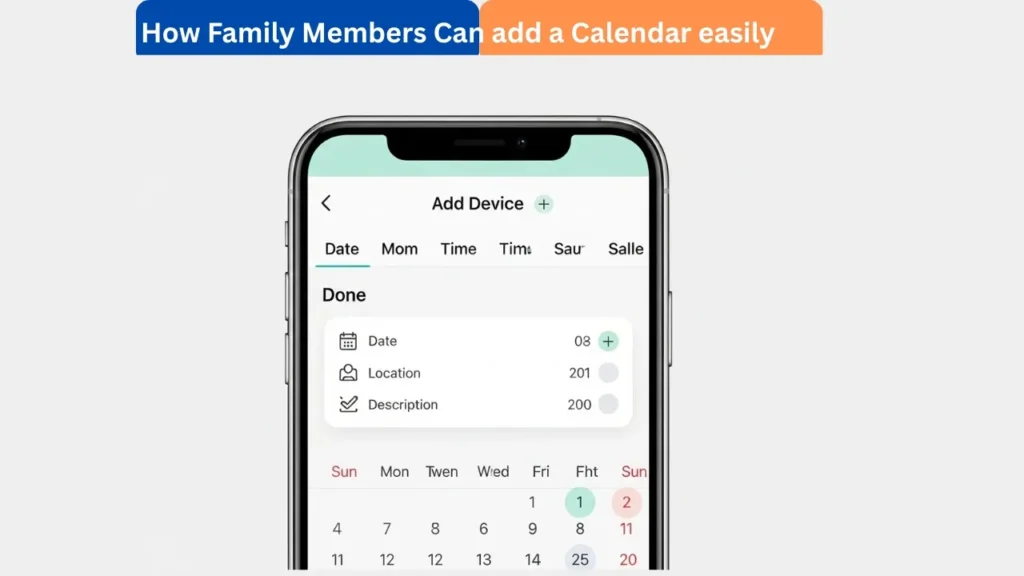
Start by opening the calendar application on your phone. Tap on Add Device to begin adding a new calendar. Select eCalendar Calendar on the list. Once chosen, then you may click OK. This is to prepare your device to be connected.
Amazon Affiliate Disclaimer
https://digicalendars.com participates in the Amazon Services LLC Associates Program, an affiliate advertising program designed to provide a means for websites to earn fees by linking to Amazon.com and other affiliated sites. As an Amazon Associate, we earn from qualifying purchases made through the links on our website. This does not affect the price you pay your support simply helps us maintain the site and continue offering honest, valuable reviews and recommendations.
Step 2: Select “NO” and Continue
You will now be presented with a confirmation query. Click NO and then click on OK to continue. This measure is to make sure that the system prepares a new connection. The operations will proceed to email entry. This step should be done as indicated.
Best Digital Calendars
Step 3: Type the Calendar E-mail
Then, use the email address of the calendar of the device you wish to add. This email is available in the device under Settings – General – Calendar Email. The same speech is presented within the calendar application, as well. Ensure that the email is typed in the correct way. This email is mandatory in connecting devices.
Step 4: Monitor Your Email the Binding Link
The email account associated with your calendar application will be offered a binding request. There is a special link in this message requesting permission to connect the calendar. Open the mail and read the information. This measure is a guarantee of protection and restricted access. The calendar can only be joined by approved members.
Digital Calendars
Step 5: Open the Link and Accept the Request
Open the email and tap the link to open it in any browser. After loading the page, the request is approved by clicking on Accept. This allows it to be bound to the calendar. There can be a pause of processing the request. Ensure that your internet is reliable.
Step 6: Find the Approved Screen
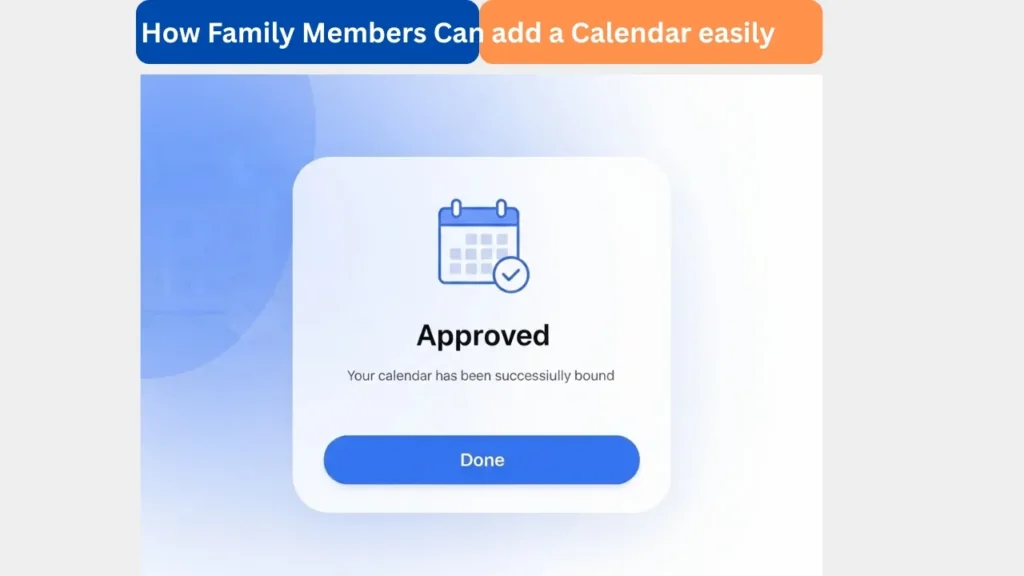
Once accepted, there will be an Approved screen. This message indicates that your device is already a part of the calendar. There is no need to make extra steps here. The system will automatically complete the connection. You can now return to your app.
Step 7: Make sure that the calendar is added
Go to the calendar application, and the new calendar will be visible. The email or the device name will be displayed in the connected calendar section. This is a surety that the process is done. It is now possible to see all events shared. Your device has its calendar in full operation.
Step 8: New Events Automatic Syncing
After the addition of the calendar, any new events made in any associated device will be automatically synchronized. This keeps all the members of the family updated at all times. There is no longer a need to refresh or make any settings manually. The process of syncing takes place silently. This ensures that shared planning is easy and dependable.
How to Use Digital Calendar’s Features – Complete Guide
How to Use Digital Calendar’s Features 2 – Complete Guide
Benefits of Adding a Family Calendar
To be organized and keep track of the key events, adding a common calendar is helpful. It eliminates mix-ups and duplications. Synchronization allows changes to be reflected immediately on all devices. Families are able to organize the plans better. It provides an easy communication process to all.
FAQs – How Family Members Can add a Calendar
Conclusion
It is a simple and safe procedure to add a family calendar. Individual members are able to connect their gadgets within a few steps. After adding, events are automatically kept in sync and all people are kept abreast of everything. This aspect enhances family planning and coordination. Begin sharing your calendar and have a better organized schedule.