Don’t fail to connect Skylight Calendars: Sync Two or more Calendars at Once
Learn how to connect Skylight Calendars to keep your family in sync. Share events, chores, and lists across rooms or homes with real time updates.
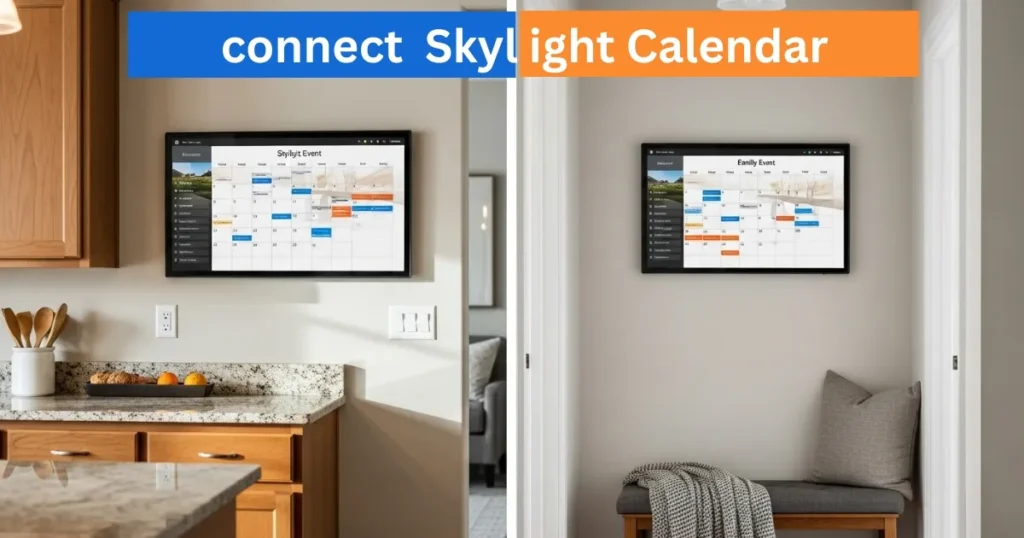
The Skylight Calendar is not just a scheduling device, it is a family center, and keeps everyone in sync. The possibility to connect several connect skylight calendars is one of its most useful characteristics since both events, chores, meal plans, and lists are shared. This option is particularly useful in families with more than one Skylight Calendar or those families that desire the same information to be displayed in two or more locations, like the kitchen and an upstairs hallway.
Best Digital Calendars
How to Link Two Calendars?
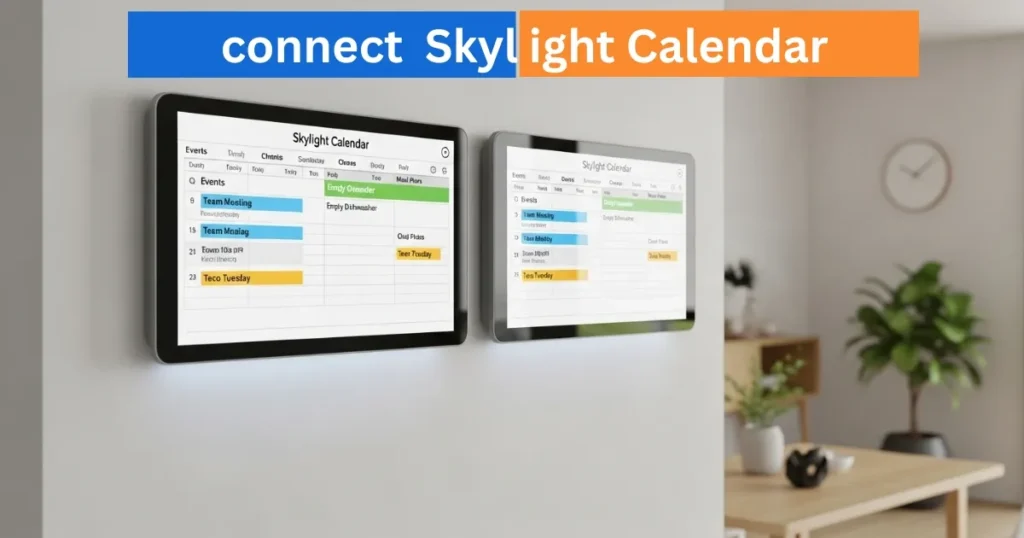
It is possible to mirror the content of two or more Skylight Calendars by connecting them. The changes made on one device are automatically updated on all the devices that are connected. This includes:
Amazon Affiliate Disclaimer
https://digicalendars.com participates in the Amazon Services LLC Associates Program, an affiliate advertising program designed to provide a means for websites to earn fees by linking to Amazon.com and other affiliated sites. As an Amazon Associate, we earn from qualifying purchases made through the links on our website. This does not affect the price you pay your support simply helps us maintain the site and continue offering honest, valuable reviews and recommendations.
- Scheduled events
- Chores and routines
- Lists and meal plans
The connection will make sure that all the family members receive the same information simultaneously, which will help avoid misunderstanding and missed notifications. Linking ensures consistency of your content whether you are using multiple devices at the same location or you need to access multiple locations and sync calendars.
Digital Calendars
Device Compatibility
It is worth mentioning that the devices of the same type can be connected only:
- The Skylight Digital Calendars are connected to other Skylight Calendars.
- Skylight Frames are connected to other Skylight Frames.
A Skylight Frame cannot be connected to a Skylight Calendar, and hence you should not connect two devices that do not match.
Best Digital Picture Frames
Time Zone Considerations
Although technically you can have calendars in various time zones, it is advisable to have all the devices that are linked to the calendar in the same time zone. Linked calendars do not automatically update the time of events. To take an example, when one calendar is adjusted to Eastern time and the other to Mountain time, an event set at 12:00 PM on the former will show 12:00 PM on the latter, although the time of the day is different.
In order to save confusion, it is always important to connect skylight calendars with similar time zones. This allows the family members to view the right times of events and have their schedules properly detailed.
Linking Multiple Devices
The Skylight Calendar is capable of connecting any number of devices. This implies that you are able to coordinate a number of calendars both at home or at different sites without any limitations. Be it two gadgets or ten, all the attached calendars will automatically update as any one of the gadgets is changed, and your household will be in flawless coordination.
How to Use Digital Calendar’s Features – Complete Guide
How to Use Digital Calendar’s Features 2 – Complete Guide
FAQs
Conclusion
Another good idea is to connect Skylight Calendars to have your household being organized and in sync. The ability to connect various devices will allow you to make sure that every member of the family is aware of the same events, chores, and meal plans in real time. It is a feature that allows the management of a busy household easily and without stress due to unlimited connection between devices, time zones and sharing of content. Whether you would like to have synchronized calendars in various rooms or various houses, connecting has everyone on the same page without any problem.