How to set and view the weather forecast on the Calendar – Complete Guide
Learn how to set and view the weather forecast on your calendar. Enable weather, add cities, switch units, and get automatic updates every two hours easily.
The digital Calendar includes the Weather Forecast feature that allows keeping yourself informed of the correct and timely weather information on the home screen. Having this feature turned on, the user is able to monitor the changes in temperature, see the weather conditions and change cities without opening an external application, which makes the experience seamless and effortless. Weather updates are provided automatically and run in the background every two hours. You can organize your day, plan your outdoor activities, and be aware of the weather conditions, as well as remain aware of everything related to weather, all in a single location, by using the Weather Forecast feature.

This tutorial covers all the processes of installing, enabling and using the weather feature in a detailed manner. You will be informed on how to make weather information, select cities, convert the temperature unit, and your preferred location of weather. The guidelines are presented in a straightforward and easy-to-understand manner where all the family members can follow with ease despite the fact that they might be not conversant with technology.
Amazon Affiliate Disclaimer
https://digicalendars.com participates in the Amazon Services LLC Associates Program, an affiliate advertising program designed to provide a means for websites to earn fees by linking to Amazon.com and other affiliated sites. As an Amazon Associate, we earn from qualifying purchases made through the links on our website. This does not affect the price you pay your support simply helps us maintain the site and continue offering honest, valuable reviews and recommendations.
Module Introduction
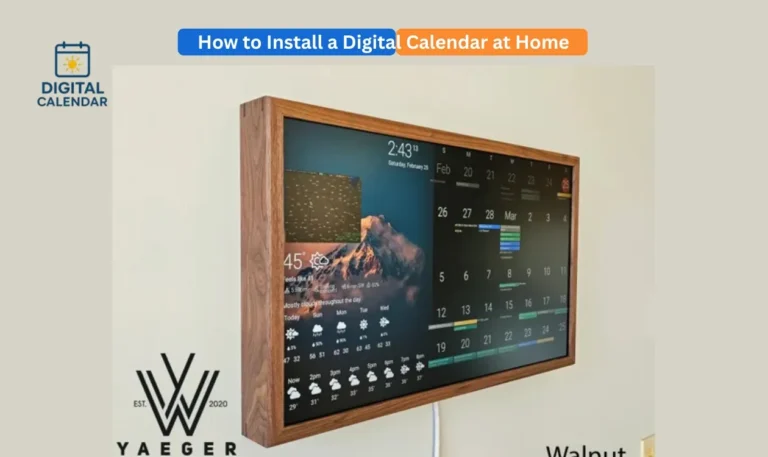
Weather Forecast module enables the Calendar to show live weather information such that users can have access to the necessary details on weather and location at a glance. As opposed to having to turn their applications on and off or look up the weather online, all updates are available in the far-left corner of the Calendar interface. This gadget shows the temperature at the moment and also images of weather conditions like sunshine, clouds or rain.
Users are also able to add several cities in the module. This can be useful when a family desires to know the weather in another place- maybe at city of a relative or a place one is travelling to or at a college or workplace. It is also compatible with Celsius and Fahrenheit, which means that it can be used by the international audience. The weather module is simple to control with automatic updates and adds more ease and convenience to the whole module.
Best Digital Calendars
Step-by-Step Guide to Set & View Weather Forecast
The following is the entire step by step procedure on how to enable and use the Weather Forecast feature in your Calendar.
Step 1: is to make Weather Information available in Settings
First, open the Calendar home screen and press the Settings button. within the Settings menu, there should be Show Weather Information. Switch on the toggle switch adjacent to it to allow weather updates. Upon activation the weather-widget will show on your Calendar screen, typically in the upper-left hand corner. This is your central hub of any weather related information and settings.
This option is necessary to allow the system to retrieve the data about weather and present the information in real-time. The widget will not show any weather information without this setting being turned on. This is the initial process which is necessary to enable the feature and prepare the calendar to get weather updates.
Digital Calendars
Step 2: Tap the Weather Widget to Open Weather Settings
After the weather widget has been viewed in your screen, tap on it to view the Weather Settings page. This allows fast access to options like addition of cities, changing units and the primary display location. The shortcut saves time as it will take you right into weather controls and avoids going through more menus.
The design is such that it provides a smooth user experience. Users can simply tap the widget to access everything instantly and they do not have to search manually to get the weather settings. Here you are able to select your own preferred city, change temperature settings, and location settings easily.
How to Use Digital Calendar’s Features – Complete Guide
How to Use Digital Calendar’s Features 2 – Complete Guide
Step 3: Search for and Add a City
On the inside of the Weather Settings page there is a search bar. You have to tap on it and type the name of the city you wish to add. When typing, a list of similar locations will pop up. Click on the results, and it will be added to your weather list. The city will be saved in your Added Cities folder.
The most advantageous thing about it is that the weather data of every city added in it is updated automatically after every two hours. This maintains all the temperature and weather information without any need to refresh any information manually by the user. It allows adding several cities, which is why it is ideally suitable to families who wish to be aware of several places.

Step 4: Turn Fahrenheit on/off Celsius on/off
Weather Forecast feature gives the user the option of using Fahrenheit (degF) or Celsius (degC) to show the temperature. Within the settings screen, there should be a toggle switch that you can use to switch between these units as and when you want. This can be useful to the users in other regions or those who are just more comfortable using one unit as compared to the other.
After switching the setting the weather widget would automatically update the temperature format. Anytime you wish to change units, this will not have any impact on your accumulated cities, or weather location. This versatility makes the system easier to the international users.
Step 5: Select the Location of Displayed Weather
In case you have added several cities, you can select which one will be shown on the home screen of the Calendar. Go to Added Cities list, and tap the city to which you want to set up as your main weather location. After being picked, weather information of that city will be displayed on the Calendar view.
This is an excellent feature to those users who are often tracking the weather of various locations. As an example, you might be interested in seeing the weather in your hometown in the morning but change to that of your workplace in the afternoon. The capability of being able to switch the displayed city anytime gives complete control of the user.
Best Digital Picture Frames
Benefits of the Weather Forecast Feature
The Weather Forecast option improves daily planning, as it is accurate and real-time it is displayed in the Calendar. It does not require visiting the external websites or applications. Families are able to track weather conditions of various cities and this is particularly useful when they are travelling or planning to go to school or even when they are checking on their relatives elsewhere. Your information is updated every two hours automatically and is therefore always fresh and reliable. The convenient feature is user friendly since the user friendly widget is suitable to people of all ages.
FAQs
Conclusion
It is easy to set and look at the Weather Forecast on the Calendar, and is very useful in doing day-to-day planning. The feature gives you real time weather information on your home screen with multiple city support, automatic updates and easy access settings. Planning out your routines, traveling, or checking the conditions in various cities, the Weather Forecast tool will offer all the necessary things in a single convenient place. Make it now and have the correct weather on your fingertips.