How to Sync Cozi Calendar on Android Phone Easily
Learn how to sync Cozi Calendar with Android using the eCalendar app or email. Keep all family events updated on your phone and digital frame.
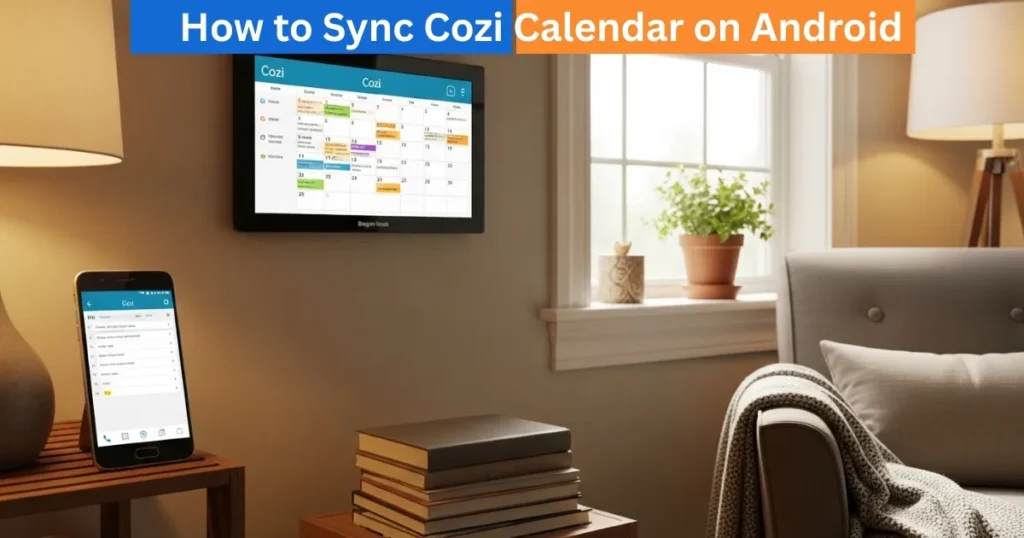
The Cozi Calendar is an effective family manager where people can track events, appointments, and reminders in a single location. In case you have a Dragon Touch or an eCalendar digital frame, you can make Cozi Calendar sync with your Android phone and all the events will be displayed on your phone and your digital calendar frame. This manual is an informative step-by-step guide to ensure that the process is simple and effective.

Best Digital Calendars
Step 1: Open Cozi Calendar URL
Begin by launching Cozi App on the Android phone. Ensure that you are logged in the right family account. Tap the menu button on the left top and choose Settings. Go to the Settings menu and tap VIEW OR SEND ZLURL, and COPY COZI URL. This URL holds all your family events and this will be used to enter them on your calendar frame.
Amazon Affiliate Disclaimer
https://digicalendars.com participates in the Amazon Services LLC Associates Program, an affiliate advertising program designed to provide a means for websites to earn fees by linking to Amazon.com and other affiliated sites. As an Amazon Associate, we earn from qualifying purchases made through the links on our website. This does not affect the price you pay your support simply helps us maintain the site and continue offering honest, valuable reviews and recommendations.
Step 2: Sync with eCalendar APP (Method 1)
After copying Cozi URL, open the eCalendar APP on your Android phone. Choose a calendar device that you would like to be synced. Select Tap Sync and Sync a New Calendar. Next choose Calendar URL and enter Cozi URL that you have copied. Click on the Tap Sync to begin the process of synchronization. The app will bring all of the events on your Cozi Calendar and show them on your digital calendar frame. This guarantees that your schedule is universal.
Best Digital Picture Frames
Best Digital Calendars
Step 3: Sync Using Email (Method 2)
Alternatively, you may make Sync Cozi Calendar with email. Go to your email application and copy Cozi URL to a new email message. In case the link is written in plain text, it should be changed to a clickable link. Email will be sent to the individual email address of your digital calendar frame (in the eCalendar APP, device settings). Next, open the eCalendar APP, tap the device, Sync, and tap Sync a New Calendar – Cozi. Your Cozi events will automatically be imported and now they will be displayed on your device.
Step 4: Check the Synchronization
Once it is synced, open your Cozi App and your digital calendar frame to make sure that everything was imported properly. Confirm the presence of events and redo the process in case of any missing events. Everything that you had on Cozi ought to be reflected on the calendar frame you have now, so that it would be more convenient to organize your family schedule and prevent misunderstandings and missed meetings.
How to Use Digital Calendar’s Features – Complete Guide
How to Use Digital Calendar’s Features 2 – Complete Guide
FAQs
Conclusion
One of the best options to keep your family organized is to sync your Cozi Calendar with an Android phone to the eCalendar APP or on a digital frame, such as the Dragon touch. All the family events, appointments, and reminders could be added to your digital calendar with the help of the above-described simple steps. Such synchronization guarantees that all the people at home are in the know of the same information, they do not miss events, and it is easier to handle a busy schedule. Under this arrangement, your calendar will never go out of date.