How to Set Category or Profile on Dragon Touch Digital Calendar?
Learn how to create, edit, and assign Profile on Dragon Touch or eCalendar digital calendar to organize family events, tasks, and reminders easily.
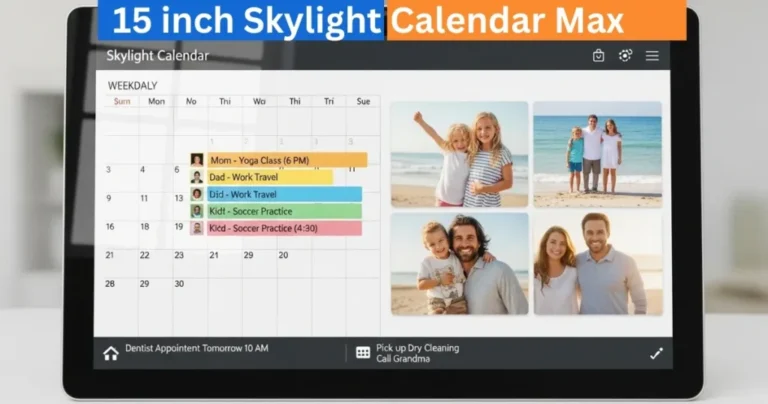
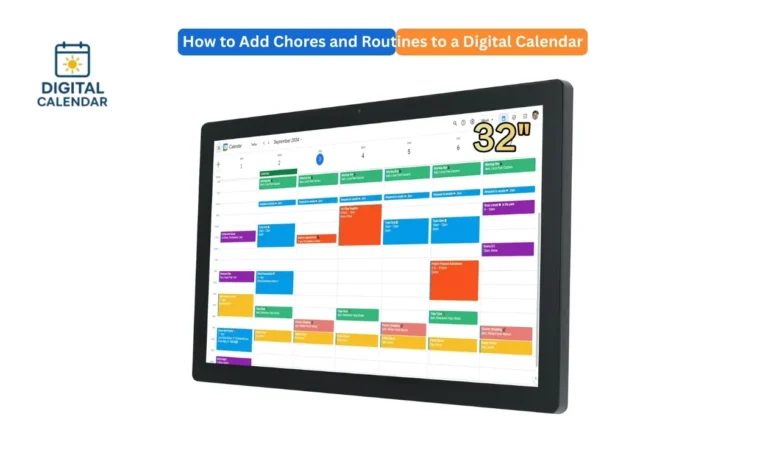
You can organize events and tasks on your Dragon touch or eCalendar digital calendar with the help of categories or profiles. The profiles, which were called categories in the older versions, enable you to categorize your events, chores and reminders to particular members or groups within the family. This feature is not only useful to visually separate your events, but also to use reward features and be able to schedule events. Here, we will take you through the process of creating, updating, and utilizing the profiles effectively on your calendar.

Digital Calendars
Step 1: Categories or Profiles Access
Firstly, open the calendar application on your mobile phone. Choose the calendar that you wish to use and tap Categories or Profiles. In the recent release 3.5.0, the name category has been changed to profile so as to correspond more closely to the reward function system. Profiles are simply names which are representatives of a family member, team member or group. You can have each profile with a specific color and name that will organize your calendar. The first action to assign the events or chores to the particular users is to go to the profiles menu.
Amazon Affiliate Disclaimer
https://digicalendars.com participates in the Amazon Services LLC Associates Program, an affiliate advertising program designed to provide a means for websites to earn fees by linking to Amazon.com and other affiliated sites. As an Amazon Associate, we earn from qualifying purchases made through the links on our website. This does not affect the price you pay your support simply helps us maintain the site and continue offering honest, valuable reviews and recommendations.
Step 2: Add or Edit Profiles
After going to the Profiles section, tap Add to make a new profile. Type in a description name of the profile e.g. mom, dad, or John. You can also choose a color that the profile should be differentiated by in order to make it stand out among others. In case you wish to edit an existing profile, just click on it in order to re-edit the name or the color. Such flexibility will give you the opportunity to maintain your calendar when there are changes or new types of events that must be established by family members. It is far easier to point out events with the help of colors.
Best Digital Calendars
Step 3: Name Profiles to Events
When one has to create a new event, it is crucial to place it in a profile. On the event creation screen, the correct profile should be chosen or in the lower left part of the screen, tap Add to create a new profile of this event. This makes the event to be linked with a particular individual or a group. Profiles come in handy when assigning a calendar to a shared family or a team where two or more members share a similar activity or duty. After being assigned, the events will show the color and name of the profile so as to identify it easily.
Best Digital Picture Frames

Best Digital Picture Frames
Step 4: Profile-filtering of Events
Your calendar can also be filtered using profiles. There is the Show Only button located on the upper-right corner of the calendar interface. By pressing this button, you can see a single profile events only. This will come in handy when you are interested in following the schedule of a particular person without any disturbances of other events. The profile filtering will make it easier to plan and prevent conflicts in schedules, as well as keep everyone organized.
Step 5: Profiles may be edited any time.
You are always able to update or manage profiles. Go to the Profile on Dragon Touch section and tap Edit to edit names or colors or delete old profiles. The reason why you should keep your profiles updated is so that your calendar is always correct and readable. Periodic updating of the profiles is also useful to families that have varying schedules or offices and teams that are constantly adding or rearranging work.
How to Use Digital Calendar’s Features – Complete Guide
How to Use Digital Calendar’s Features 2 – Complete Guide
FAQs
Conclusion
The best way to organize your calendar and assign tasks and manage family schedules or team schedules is using Profile on Dragon Touch or eCalendar calendar. The visual separation of the events, the ability to filter the calendar by certain users, and to keep everything in order can be done by creating, editing, and assigning profiles. In addition to being easier to read, profiles also combine with reward and task management capabilities, enhancing productivity and coordination of households or teams. By having good profile configurations, it is an easy task to handle hectic schedules without any stress.