How to Enable Two-Way Google Calendar Sync on the Dragon Touch Digital Calendar
Learn how to enable two way sync Google calendar on the Dragon and Google Calendar to manage all your schedules effortlessly in real time.
The two-way sync with Google Calendar is an amazing feature of the Dragon Touch Digital Calendar that allows the users to be organized. This feature enables your events to be synchronized in all of your e calendar application, Google calendar, and your dragon touch frame, so that you will never miss an appointment or other important reminders ever again.
It is possible to add events on your smartphone, on your computer or directly on your calendar frame and the two-way sync makes everything be in the right place. In the following paragraphs, we will take you through the step by step process to establish and use two way synchronization with Google calendar in an efficient manner.
Amazon Affiliate Disclaimer
https://digicalendars.com participates in the Amazon Services LLC Associates Program, an affiliate advertising program designed to provide a means for websites to earn fees by linking to Amazon.com and other affiliated sites. As an Amazon Associate, we earn from qualifying purchases made through the links on our website. This does not affect the price you pay your support simply helps us maintain the site and continue offering honest, valuable reviews and recommendations.

Best Digital Calendars
An Introduction to Two-Way Sync and Why It Matters
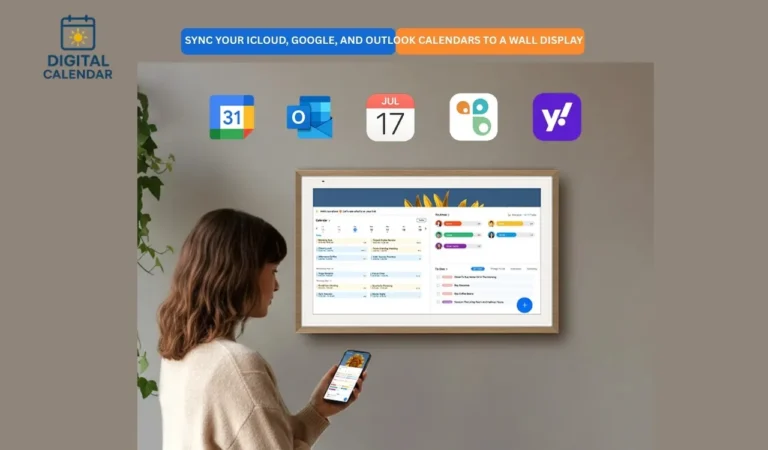
Two-way sync implies that a ny changes you make to your calendar whether in your eCalendar app, your Dragon touch frame, or Google Calendar will be automatically updated everywhere.
For example: When you add a new appointment in Google Calendar, it will be presented in your Dragon Touch device within one minute. When you book a family dinner in the eCalendar app, the item will also be shown in your Google Calendar app. This real time synchronization saves the burden of manually updating your events, so that your whole schedule is in sync in all your devices.
Digital Calendars
Two-Way Sync Step-by-Step Guide.
These are the steps to follow to establish a two-way syncing with your Google Calendar.
Step 1: Open the eCalendar App
To start with, open the eCalendar application in your smartphone or tablet. This application acts as the main point of integration of your Dragon Touch Calendar with web based websites such as Google Calendar. After the opening, go to the Calendar Sync option where you will see an option to Add or Sync Google Calendar.
Step 2: Sign in to Your Google Account
You can then tap the Google Calendar option and you will be asked to log in using your Google account credentials. Upon signing in ensure that you give yourself all the required permissions. This is necessary to make sure that your eCalendar application is able to read and write to your Google account, which is a critical aspect of two-way synchronization.
Upon successful log in, the next step is to choose the option of Sync All Calendars so that the eCalendar app can use all Google Calendars associated with your account.
Best Digital Picture Frames
Step 3: Wait until the Sync Confirmation
Once you have connected your account, the app will start synching the data between your eCalendar app and your Google Calendar. This is done in a couple of minutes based on the size of your event list and the internet connection speed. A successful sync will display a message or an indicator that displays the word success.
Step 4: Add an Event on eCalendar App.
When the synchronization has been switched on, test it by adding a new event.
- Open your eCalendar app.
- Click the plus button and add an event.
- Choose the type of event Synced Google Account.
- Include the event information including title, time and description.
This will secure the event and make sure it is not just another local event stored in your Google Calendar.
Step 5: Check Syncing in all devices.
Wait approximately a minute after the creation of the event. The event you have added on the eCalendar app also ought to be displayed on your Google Calendar application and on your Dragon Touch Calendar frame. To check the synchronization one more time, open your Google Calendar application on a phone or a computer and make sure that the new event is properly represented.

Pro Sync Syncing: Two Ways.
- Maintain Internet Connection: The good Wi-Fi connection is the one that will guarantee a faster synchronization.
- Use the same Google Account: You must ensure that you are using the same Google account on the eCalendar application and Google Calendar.
Give It a Minute or Two to Sync Sometimes, the sync process could take as long as 2-3 minutes.
- Do not have Multiple Sync Sources: In case you also sync with other programs like Outlook or iCloud, make sure you do not duplicate events.
- Turn on Notifications: Switch on notifications in the app and the frame to be notified of the upcoming events.
How to Use Digital Calendar’s Features – Complete Guide
How to Use Digital Calendar’s Features 2 – Complete Guide
FAQs – How To Sync Dragon Touch with Google
Conclusion
Two-way sync of your Dragon Touch Digital Calendar and Google calendar is an easy and yet effective method of managing your time. When connected, any changes that you make, be it through your mobile application or your laptop and even the calendar frame are updated across all platforms in real time.
This smooth coordination will assist you in keeping a well-organized schedule that will make sure that you do not miss out on any event, meeting, or family activity. All it takes is a few taps, a Dragon Touch Calendar transforms into a living, breathing, and breathing mirror of your hectic life.