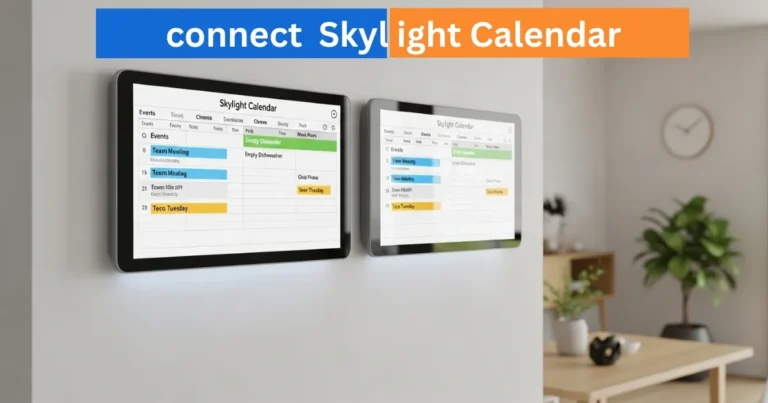
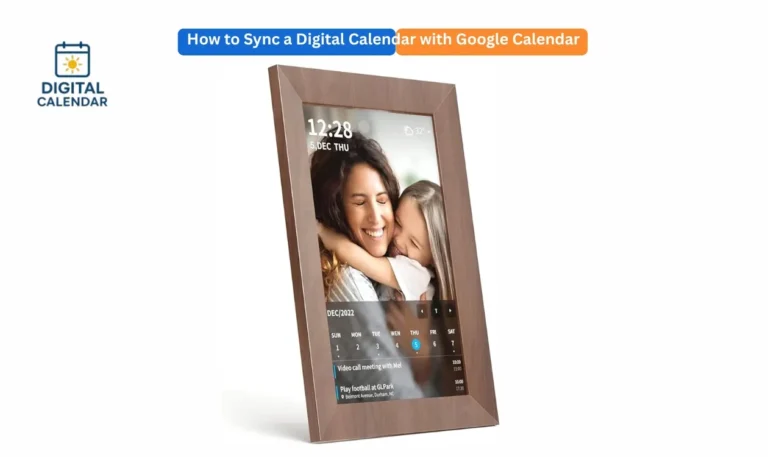
How to Sync Remote Calendars on Skylight Display
Learn how to Sync Remote Google, Outlook, iCloud, TeamSnap, and more with your Skylight Calendars. Keep all events updated and organized in one smart display.
It is not hard to keep track of various schedules when using Remote Calendars on Skylight with its strong ability to synchronize. It may be in personal events, work meetings, or even family reminders but with Skylight, you can add all your digital calendars in one location. By syncing, all appointments, tasks or plans are shown on your Skylight screen automatically and n o longer do you have to manually enter the information.
Whether it is Google Calendar or Outlook and iCloud, Skylight maintains all your engagements in real time. It is the final answer to the families and professionals who desire smooth organization and coordinated planning of all the devices and accounts.
Amazon Affiliate Disclaimer
https://digicalendars.com participates in the Amazon Services LLC Associates Program, an affiliate advertising program designed to provide a means for websites to earn fees by linking to Amazon.com and other affiliated sites. As an Amazon Associate, we earn from qualifying purchases made through the links on our website. This does not affect the price you pay your support simply helps us maintain the site and continue offering honest, valuable reviews and recommendations.
Best Digital Calendars
Google Calendar
One of the most popular things that users can do with Google Calendar is connecting it with Skylight. It is easy and fast to set up, open Skylight mobile app, and in the settings, Linked Calendars, and Add Calendar, and select Google. Once logged in, it will request you to give your events to Skylight.
After the connection, you can see all your meetings, reminders, and shared events automatically on your Skylight screen. This is two-way and that is, any changes done in Google Calendar are immediately reflected in Skylight, so that your family or team never misses any event.
Digital Calendars

TeamSnap
In the case of sports teams or athletic families, TeamSnap integration has provided a lot of ease in scheduling. The Skylight app allows you to connect your TeamSnap account to your family calendar to show practice schedules, game schedules, and other team activities. As soon as you are connected, Skylight automatically changes when schedules are modified by your coach or manager.
This keeps the players and parents up-to-date without having to check several apps. The integration makes sure that all the future sporting events are visible together with personal and school activities. Combining the efforts of TeamSnap and Skylight makes it easy to handle hectic team timetables without any stress.
Best Digital Picture Frames
iCloud Calendar
Users of Apple can easily connect their iCloud Calendar with Skylight to have a single view of all the events. It is connected by going to Settings – Linked Calendars – Add Calendar and choosing iCloud. Insert your Apple ID details and log in. After being linked, all iCloud events, reminders, and shared events will be automatically displayed on your Skylight Calendar.
Be it work meetings, birthdays or other personal plans, Skylight reflects your iCloud updates in real time. This cross-platform syncing attribute is perfect when it comes to families that operate on various platforms and maintain every one of them updated without the matter of the operating system.
How to Use Digital Calendar’s Features – Complete Guide
How to Use Digital Calendar’s Features 2 – Complete Guide
Outlook
When your career is based on the use of Outlook, Skylight Calendar will keep you organized as it is synchronized with your Outlook account. In order to get connected, open Skylight app, tap Add Calendar, and select Outlook. Log in using work email and give permits. After connecting, you will have your business meetings, project reminders and shared office events displayed automatically on your Skylight screen. The Outlook updates automatically, and it is thus easy to balance the work and home lives. Having an Outlook integration, Skylight will serve as your one-stop-shop to keep track of your work and personal life.
Cozi
Skylight also enables Cozi users to use its sync functionality. Cozi is an organization family app that has shopping lists, meal plans, and joint events. Connecting Cozi to Skylight implies that all your Cozi-related activities in the family are shown in one place. To sync, go to the Skylight app, add a calendar and use Cozi. After connecting, all grocery lists, appointments, and school notifications of Cozi are displayed on your Skylight Calendar. This linkage makes busy households remain on track and maintains a clear communication amongst all the members of the family.

Yahoo Calendar
Yahoo Calendar integration will enable you to have older or secondary schedules in Skylight. Connection to your Yahoo account means that birthdays, anniversaries and timed tasks will show up on your gadget on real time. All you have to do is to log in using the Linked Calendars section and grant the access. After its syncing, Skylight automatically synchronizes with the changes to your Yahoo Calendar. T
he connection is particularly beneficial to users who have to handle several email accounts yet do not want all that to be on a single display. Yahoo syncing enables you to have your schedule arranged and visible without the need to change to different apps.
Readdle Calendars 5
The users of Readdle Calendars 5 are also able to connect their accounts with the Skylight to be fully scheduled. The app by Readdle is famous because of sophisticated event management and planning tasks. It can be used to show your Readdle schedule on a bigger screen in a visual format when used in conjunction with Skylight. It only requires a few taps to be linked to the calendar via the Skylight app. When connected, the events, reminders, and notes of Readdle are automatically displayed in Skylight, and you can see your up-to-date at a glance. It is an excellent method of combining productivity and convenience in your life.
How to sync Skylight Calendar to Your Company Account?
Skylight Calendar can be connected to the company accounts of businesses and remote teams, which can be shared. A lot of organizations have the use of Outlook, Google Workspace or Exchange-based calendars – all of which Skylight supports. After connecting, the team members are able to see upcoming meetings, deadlines and events right on a Skylight display at the office or at home. This enables transparency to be easy to keep and to be on time. Skylight also enables teams to be updated without opening several apps and emails, which simplifies the process of collaboration and enhances productivity in the workplace.
Which Calendar Does Skylight Sync?
Skylight Calendar is compatible with all the leading applications, such as Google Calendar, Outlook, iCloud, TeamSnap, Yahoo, Readdle, and Cozi. It also maintains company accounts and shared calendars thus ideal to be used by families and professionals. The gadget keeps updating your information on a regular basis and so your schedule is never inaccurate. Even when it comes to organizing personal activities or office-related events, Skylight gives you perfect synchronization so that you can organize and manage time smoothly.
FAQs About How to Sync Remote calendar
Conclusion
Scheduling How to Sync Remote calendar makes Skylight a central point of all your scheduling. Personal reminders to professional meetings, all this is tied up and seen in one place. Google, iCloud, or Outlook, Skylight will see to it that your everyday life goes well and effectively. It is not just a smart display, it is your personal time management assistant to make your family and work life perfectly balanced.