How to Add to outlook calendar – Full guide
Learn how to sync your Outlook Calendar with the eCalendar for two-way updates. Add your email, select the calendar, and enjoy automatic event synchronization.
You can also have all your events in your Outlook Calendar, which is synchronized with the digital Calendar system. This will allow you to mix personal, work, and family schedules without having to alternate between apps. Whenever the sync is turned on, new events are immediately displayed on the device and the app. The bi-directional sync also makes sure that the changes that are made on either side are automatically updated. This manual takes you through every process in a straightforward and understandable manner.
Outlook Calendar synchronization is very handy among those users who have various meetings in a day. Regardless of whether you use Outlook to plan your work or personal life, the process of syncing will help to avoid missed meetings and your schedule conflicts. The eCalendar automatically arranges the events in an easy to read format. This facilitates planning by individuals and families that desire a smooth coordination. All you need is to take a couple of steps and keep your calendars synchronized and current.
Amazon Affiliate Disclaimer
https://digicalendars.com participates in the Amazon Services LLC Associates Program, an affiliate advertising program designed to provide a means for websites to earn fees by linking to Amazon.com and other affiliated sites. As an Amazon Associate, we earn from qualifying purchases made through the links on our website. This does not affect the price you pay your support simply helps us maintain the site and continue offering honest, valuable reviews and recommendations.

Best Digital Calendars
Module Introduction
The Sync with outlook utility enables you to integrate your Outlook Calendar with your Calendar Frame and application. This relationship makes the events shared in real time between the two platforms. When a meeting is added in the Outlook, it is shown on the eCalendar. When an event is added to the eCalendar, it shows up in outlook. The system has a two way sync mechanism to ensure accuracy and convenience.
This is particularly useful to individuals who use Outlook to work in their offices. You can look at all events on a single device instead of having to look at two different calendars. The sync is fast and safe and it only takes you to input your Outlook username and the calendar you want to use. After being configured, it all happens automatically in the background. This simplifies and eases the scheduling process.
How to Sync with Outlook Calendar?
Step 1: Click on Sync Button and Choose New Calendar
First, you need to open the sync settings in your eCalendar device or application. The process is initiated by tapping the Sync button. A menu will come up and will request whether you would like to sync a new calendar. Choose the Sync a New Calendar option. This gets the system ready to be linked with your Outlook account.
The sync button is conveniently located and it is also made to start smoothly. You do not have to have any sophisticated settings or technical options. This is because the process only requires one tap and is therefore easy to use by every user. After this, the system automatically transfers to the Outlook connection screen. This guarantees effective and orderly working process.
Best Digital Picture Frames
Step 2: Select outlook and Two-Way Sync
The following screen will display various calendar platforms. Tap on outlook to proceed with the connection. Once the Outlook has been selected, select Two-Way Sync. This is so that the updates are flowing in both ways; eCalendar to Outlook and vice versa. Two-way sync will be significant to those users who post events on both platforms.
Selecting two-way sync prevents the appearance of duplicates and the lack of information. Any changes in the Outlook are reflected in the Calendar Frame. On the same note, any updates done on Frame or app are reflected in Outlook. This ensures that all schedules are in line. It also is time saving as there is no duplication by hand.
Digital Calendars
Step 3: Fill Your outlook email address
You are now prompted to type in your outlook email address. Type in the address related to your outlook account. After entering the system will scan your available outlook calendars. You can have various calendars like Personal, Work, Family or Shared. Choose the calendar that you wish to be synchronized with your eCalendar.
Feedback: The system will be linked to your active account on the Outlook mailbox in case you enter the right email. Should you have more than one profile on Outlook, then select the desired profile. The calendar used is also important to keep your data in order. Only once this step is done correctly, events will start to synchron. Before doing this, make sure to check your email.

Step 4: Wait till Synchronization is completed
Once you have chosen your calendar, the sync will start. The system also connects automatically to Outlook servers and imports your events. It can take several seconds based on the events. In the meantime, do not shut down the application or switch the device off. Allow the process to be completed so as to be able to have full syncing.
After the sync has been finished, a confirmation message will show up. The events in your Outlook would now be visible on the e Calendar interface. The first synchronization gets all future and present events. The changes in the future will change automatically. This will complete the relationship between the two platforms.
How to Use Digital Calendar’s Features – Complete Guide
How to Use Digital Calendar’s Features 2 – Complete Guide
Step 5: Outlook Events on Device and App
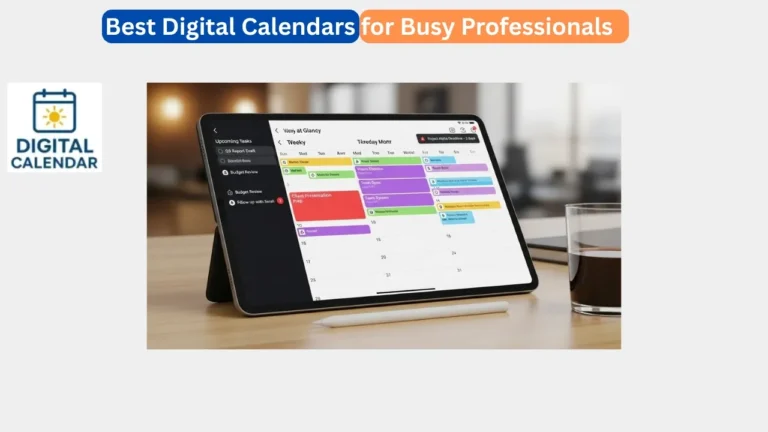
Once it is completely synced, your events will appear on the Calendar Frame and eCalendar app. You are able to scroll your schedule to ensure that the Outlook meetings and reminders are present. Test in Outlook by adding a test event to check real-time updates. The event must be reflected on the calendar immediately.
Two-way sync also implies that adding an event on eCalendar will appear on Outlook. This aids in making sure that nothing goes out of track regardless of where you update your schedule. You may trust the connection to do the daily planning. This system makes it easy to organize routine to those who are busy in their work or home.
Benefits of Syncing with Outlook Calendar
Outlook sync gives you a overview of all your schedule. It avoids overlaps and simplifies the process of planning activities. Outlook users who rely on the software for work-related engagements are the greatest benefactors. The bi-directional sync provides proper updates on both ends. This uniformity enhances efficiency and decreases misunderstanding.
The other advantage is that you can easily see all your events on your Calendar Frame. You do not have to open your computer or Outlook application too often. Everything is clear and beautiful on the eCalendar. It is turned into a central planning center of the entire family. This simplifies the process of planning.
FAQs
Conclusion
Outlook Calendar syncing with the eCalendar will result in a harmonious scheduling process. It is fast, straightforward and dependable in day to day planning. Two-way updates ensure that your meetings, reminders and events are all up to date. This is the property that allows you to avoid any confusion and your schedule is constantly up to date. Keep better, more intelligent schedules by trying to sync now.