How to Create a Recipe on Your Frame -Complete Guide
How to Create a Recipe on Your Digital calendar Frame or mobile app. Add names, categories, dates, and sync instantly for smooth weekly meal planning.
You can create and label recipes on your Frame and arrange meals in an easy and organized manner. The Recipe feature enables you to add names of the meals, add categories to the meals and also set the date that the recipe is to be used. All that you add is also automatically synchronized to your mobile application keeping both devices in sync. This is more convenient and quicker to plan out meals in your day to day life. You can sort out recipes any time with only a few strides.

Best Digital Picture Frames
How to Create Recipes on Mobile?
Select a Date
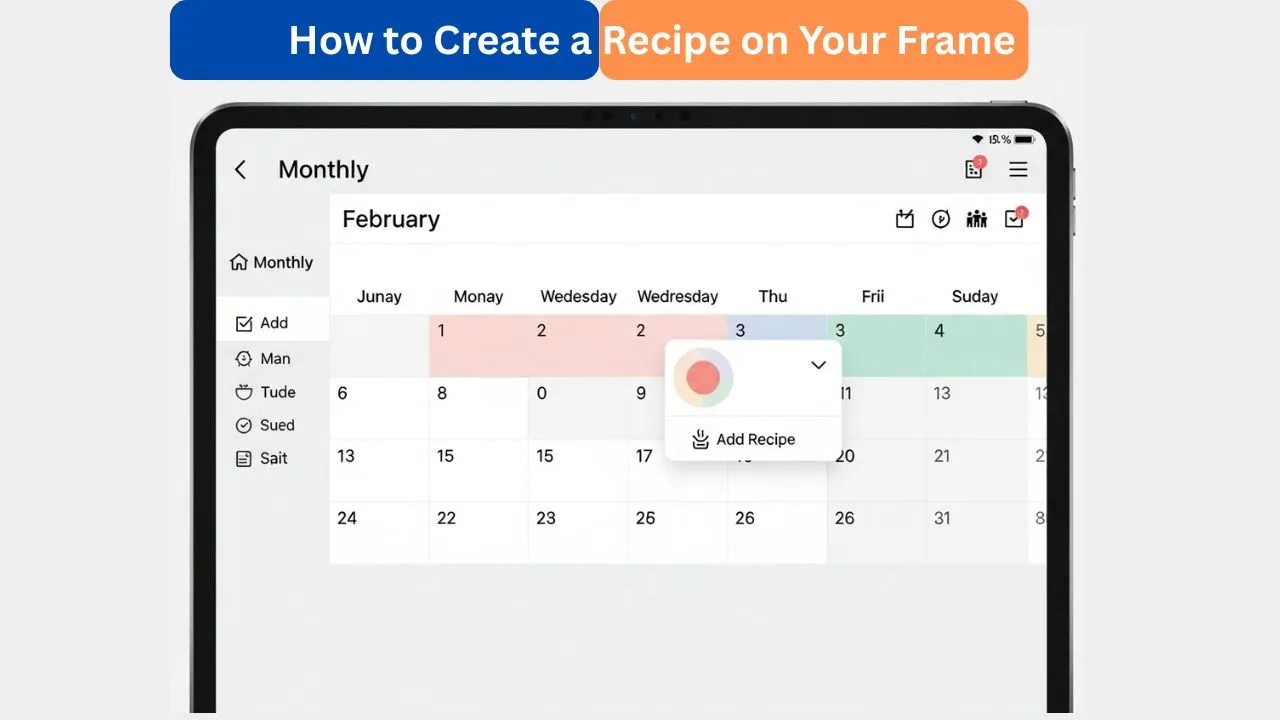
All you need to do is to tap on a date on your digital calendar Frame. An alternative menu will come out with various options. Select “Add Recipe” on the list. This will bring a new window of recipe making. At this point you can start typing in your recipe.
Amazon Affiliate Disclaimer
https://digicalendars.com participates in the Amazon Services LLC Associates Program, an affiliate advertising program designed to provide a means for websites to earn fees by linking to Amazon.com and other affiliated sites. As an Amazon Associate, we earn from qualifying purchases made through the links on our website. This does not affect the price you pay your support simply helps us maintain the site and continue offering honest, valuable reviews and recommendations.
Enter Recipe Details
The name of the recipe that you wish to prepare should be typed in the recipe form. After that select the appropriate category like Breakfast, Lunch or Dinner. These groups will assist you in staying organized in examining your meal plan. The inclusion of proper details also facilitates finding recipes in future. When you have done this, you are now prepared to proceed to the second phase.
Example of Adding a Recipe
You can also use a title of your recipe such as Apple. Then come under the Dinner category where it fits. This renders the recipe recognizable during examination of meals. Categorization makes your meal plan neat and tidy. It makes it easier to follow recipes as well.
Best Digital Calendars
Assign the Recipe to a Date
Once you fill in the information, a date of the recipe would have to be selected. Choose the day you would like to see New Recipe – Apple. This will assist you to have an easy time scheduling meals on your calendar. After picking a recipe, it will be saved immediately to that date. The recipe will now be displayed in the position that you selected on your Frame.

How to Make Recipes on Mobile
Another easy method of adding new recipes is through the mobile app. It comes in particularly handy when you are in a hurry to change your meal plan. You can add recipes to your Frame immediately they are added to your phone. This is that the two devices are kept up to date. It is a quick, clean and highly convenient process.
Open the Meals Page
Begin with the Meals page in the mobile application. The choice to add new recipes will be available here. Click on the Add button to start with. This button will direct you to the creation of recipes. It will help you to save time and efforts.
Digital Calendars
Tap Add Again
Once you have tapped the first Add button, tap Add again to open a new recipe form. This is where all the necessary details are to be typed. The shape is plain and amateurish. It assists in preparing recipes without mistakes. All is well marked to make it easy to understand.
Enter Recipe Information
Enter the name of your recipe into the given box. Next, select a category that is similar to the type of meal. These two disciplines assist in arranging your recipes in an orderly manner. Once everything is right, tap Save to save your recipe. It is now to be found in your list.
Select the Date
The next step is to select the date on which you wish to place the recipe. As an example, you can add to any day that you choose, “New Recipe – Bread. This renders your meal schedule clear on the calendar. Every date may contain several recipes in case of necessity. As soon as it is added, the recipe is included in your schedule.
Automatic Sync
Once you save your recipe, it will be synced. This implies that the information on your phone and Frame will be the same and updated. There is no need to refresh or to sync. It makes sure that your meal plan is always correct. This aspect simplifies the process of planning and makes it more dependable.
The Recipe Feature
Recipe feature makes it easier to plan your meals. It enables you to make, plan and order meals with minimal effort. Categories make the recipes arranged in order and easily recognized. Keeping everything in check is something that Sync does. This device simplifies and stress-free meal preparation every week.
How to Use Digital Calendar’s Features – Complete Guide
How to Use Digital Calendar’s Features 2 – Complete Guide
FAQs – How to Create a Recipe on Digital Calendar
Conclusion
Your Frame has a Recipe feature that simplifies and streamlines meal planning. It takes very few steps to add recipes and date them to any date. Categories and automatic synchronization ensure that everything is well organized and manageable. You have your recipe list that is always up to date, whether on your Frame or on your mobile application. Begin adding recipes today and have a much easier meal planning process every day.